WiFi Security Levels: What’s Best for Your Network?

If you have a home wireless network, it’s worth determining your WiFi security levels, as well as what exactly they mean for your connection. With just a few simple steps, you can make sure any WiFi network is operating with maximum protection.

wifi-security-levels copy

Security Simplified

There are three “types” of WiFi security: wired equivalent privacy (WEP), WiFi protected access (WPA), and WiFi protected access version 2 (WPA2). According to a white paper from the IT security magazine hackin9.org, WEP came first, debuting in 1999 as part of the IEEE 802.11 wireless standard. The goal was to provide a level of protection equal to a wired connection, but since it wasn’t the brainchild of security or cryptography experts, WEP was quickly hacked. WPA developed as an interim solution while a new standard — IEEE 802.11i — was being finalized. In 2004, IEEE 802.11i went public along with WPA2, which featured several security enhancements. The most important was the advanced encryption standard (AES), approved by the US government for encrypting top-secret information.

Worth Checking

Current-generation wireless modems and routers usually support multiple security levels but may not always default to WPA2. To find out how your network is protected, point a web browser to your router’s home IP address and access the control panel. Not sure what IP address it uses? You can either look up a list of common IP addresses for router brands online or find your Command Prompt in Windows. Then enter “ipconfig”. This will return an IP address called “default gateway,” which is the address of your router. Putting this address into a browser brings up the router’s control panel, where you’ll be required to enter a login name and password. Refer to your router’s manual for this information.

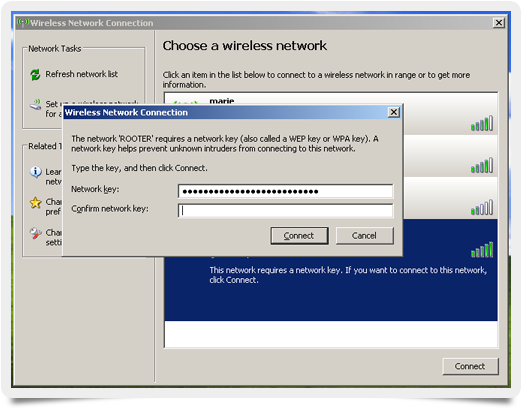
Once you’ve accessed the control panel, find the tab or drop-down menu labeled “security.” There, you’ll be able to see what kind of protection is in place and adjust any settings necessary. If supported, you can increase the security level from WEP or WPA to WPA2, along with creating a unique passphrase users must enter before they’re granted access. In addition, you can directly control which other devices are connected to your network, ban certain devices based on their IP, or even make your network invisible to other computers in the area. When selecting a WPA2 passphrase, make sure to use something you’ll remember but hackers won’t guess — so avoid things like street addresses or repeating number patterns.

The best security level for your WiFi network is WPA2. If you’re not sure how a network is protected, check the router’s control panel and increase WiFi security levels as necessary. Insecure networks are tempting targets: make sure you’re in control of who gets access, and when.

Photo credit: Flickr/Xurble

About the Authors

What is the Ideal Internet Speed for Streaming Content?

As Internet speed has vastly improved over the years, the demand for streaming services such as Apple TV, Google Chromecast, the Rose, and Netflix has driven many Internet users to push the limits of their Internet connections. In order to get the best speeds possible out of your Internet service provider, using an 802.11n router is vital to ensuring your devices are getting the bandwidth they need. Netflix requires a minimum speed of 0.5 Mbps to stream content; however, they recommend that your speed is at least 1.5 Mbps. If you want higher image quality from the content you stream, you’ll need even faster speeds: 3.0 Mbps for DVD-quality video, 5.0 Mbps for HD video, and 12 Mbps for 3D video.

internet-speed

When to Avoid Streaming

Although high-speed Internet connections are the norm today, there are cases when you shouldn’t be pushing your bandwidth to the limit. Namely, as a rule of thumb, if you do not have unlimited data on your cellular plan, you will want to avoid Internet streaming on your mobile device to avoid overages. Even if you have unlimited cellular data, it usually is best to limit streaming to WiFi connections because they are usually more reliable than connecting via cellular connections.

Additionally, if you travel regularly, many public hotspots in airports, airplanes, and other high-traffic areas aren’t built to handle bandwidth-intensive activities such as multimedia streaming. Fortunately, if a provider charges extra for extra speed, they will typically make the pricing clear on the payment page.

How to Determine Your Internet Speed

While bandwidth measurement is a technical topic, you can easily measure your Internet speed with only a few clicks by using an Internet speed test. In particular, you will want to use a responsive tool because this means the test is run in your browser. This allows you to ensure that no matter the device you use, the metrics are uniform. If you find that your Internet connection is significantly slower than the speeds advertised by your Internet service provider, it is best to contact the company so they can run the appropriate troubleshooting tests.

About the Authors

Perform a Speed Test Before Using Your Chromecast

Google’s new robust streaming device, the Chromecast, is both wonderful and inexpensive, but before you connect to your TV, make sure you perform a speed test on your device. Once you know your speed is up to par, you’re only a few simple steps away from enjoying your new Chromecast.

Chromecast_dongle.png

What Is a Google Chromecast?

Chromecast is a dongle (a small piece of hardware that attaches to your device) that plugs into your TV’s HDMI port and is powered by a USB cable. By using your smartphone (or laptop) you can use Chromecast to stream content from the Internet: Netflix, Youtube, Hulu Plus, HBO Go, and the Google Play store (and more). Chromecast is simply just a transmitter between your TV and your streaming service via your device (smartphone, tablet, or laptop).

How Do I Set Up Chromecast?

  1. You need to make sure you have home WiFi. If you don’t, you’re out of luck.
  2. You need to analyze your home bandwidth. Perform a speed test on your smartphone, tablet, or laptop (the test incorporates HTML5 technology, so it will run on any device and browser, without a separate application to download). Your WiFi should be nice and robust in the vicinity of your TV. Use the speed test as well to test how strong your WiFi signal is (a weak signal means weak streaming).
  3. Follow the directions on the box: plug it in (you will need a free HDMI port, and remember that you need to either plug the power via USB or use the power adapter included in the box).
  4. Switch your input until you see “set me up” on your TV
  5. Set up the Chomecast by going to google.com/chromecast/setup (we recommend that you use the device that you plan to use as your remote as the set up device, either your smartphone, tablet, or laptop, and don’t worry, once you’re up and running you can connect as many devices as you feel).
  6. Download the Chromecast app or utility (remember: you will probably need a firmware update out of the box; things might stop working while the Chromecast updates, but afterwards it should work perfectly).
  7. Connect to your WiFi network via inputting your password (you better know your password by now!).
  8. Once the Chromcast is connected, it should say “ready to cast.”

You are ready to stream. Go to Netflix or YouTube, and you will see a logo for streaming. Activate it, and what’s streaming on your smartphone, tablet, or laptop should now be streaming on your TV. Happy Streaming!

Photo credit: Wikimedia Commons

About the Authors

What is Network Penetration Testing and How Does it Work?

What is Network Penetration Testing and How Does it Work?

Cybercrime is a growing problem, especially for businesses. In fact, cybercrime is the fastest-growing type of criminal activity and will cost businesses around $5.2 trillion in the next five years. Although large companies like Facebook and Quest Diagnostics have been in the news for serious data breaches, small businesses should take these threats seriously, too.

43% of small businesses are the target of cyber-attacks. Sometimes, small businesses are specifically targeted because they have smaller IT security budgets, less stringent protocols, and fewer security professionals on staff. Luckily, businesses both big and small can take steps to ensure that sensitive company and client data stays protected from malicious actors.

One method to shore up virtual defenses is hiring ethical hackers to break into your network to probe for weaknesses. Otherwise known as network penetration testing or pen tests, these simulated attacks can help companies address vulnerabilities in a safe manner and prevent criminals from gaining access to your systems.

What is penetration testing?

What types of penetration testing exist?

What is included in a pen test?

What happens after penetration testing?

Why do we need penetration testing? 

What is penetration testing?

Penetration testing or ethical hacking allows companies to test their computer systems, web applications, and network by exploring any weak points or security vulnerabilities. These tests can be performed manually or with software.

In some cases, these pen tests are called “white hat attacks” because they’re considered permissible hacking attempts rather than actual cybercriminal intrusions.

The most common cyberattacks against businesses that are not permissible include the following:

  • Zero-day exploits: An attack that occurs between the time a security weakness is publicized and when the security upgrade is available.
  • SQL injection: A malicious code is installed on a database management software (SQL server).
  • Man-in-the-middle attack: A hacker interrupts a transaction between two entities to steal data.
  • Phishing: Targets are contacted by SMS, email, or phone by an individual posing as a company or another legitimate institution in order to trick them into providing sensitive information.
  • Malware: This can be in the form of viruses, trojans, spyware, and anything else that disrupts the normal functioning of a single device, system, web application, or networ
  • Distributed Denial of service (DDoS) attack: The method leveraged most frequently for this attack is a hacker flooding a network with an overwhelming volume of “junk” traffic that paralyzes the system, making it inaccessible for normal users.

Potential consequences of a cyberattack

A cyber attack can negatively impact businesses by causing damage to electronic data which may require expensive fixes. For example, if hackers infiltrate company laptops, business owners may have to invest in new laptops while the compromised devices are being repaired. Companies can also suffer from lost income if a denial of service attack renders your company’s virtual storefront unusable.

Your company may also be vulnerable to security and privacy lawsuits if customer or client data is stolen by a hacker. As a result, clients can sue your business for damages, or take their business elsewhere due to the loss in trust. Hackers may also try to extort you if they obtain sensitive data and may lock certain files or threaten to publicize private information unless you agree to pay a ransom.

And lastly, one of the most serious impacts of a data breach or hack is the damage to your company reputation. If you lose the trust of your customers, employees, shareholders, clients, investors, and anyone else who is involved with your company, you run the risk of losing business. Penetration testing can help prevent these types of worst-case scenarios.

What types of penetration testing exist?

There are several ways to conduct a penetration test and each type of simulated attack can reveal different IT weaknesses that you can take steps to fix after the testing is complete.

White Box Pen Test: During a white box pen test, the testing team is given information about the target network before they begin, such as IP addresses and security protocols.

Covert Pen Test: A covert pen test (or black box testing) is when the tester is given the name of the company that serves as the target. In turn, the IT security team can watch in real-time how an attack would occur.

Double-Blind Pen Test: In this scenario, the IT team has no idea a simulated attack is happening.

External Pen Test: External penetration tests target the assets of a company visible on the internet such as the company website. The goal of this test is to access and steal sensitive data.

Internal Pen Test: An internal pen test means that the hacker has access to an application behind its firewall. While this can simulate the kind of damage a disgruntled employee can do, it can also mimic the effect of an employee’s credentials being stolen due to a phishing attack.

Targeted Pen Test: In a target pen test, the IT team and penetration testing team work side-by-side. It’s also referred to as a “lights turned on” approach because everyone is watching and learning as the test is conducted.

Pen Testing as a Service (PTaaS): This type of pen testing gives your IT security team the resources necessary to conduct and act on the results of continuous pen tests.

What is included in a pen test?

Penetration tests typically involve tools to identify and scan systems for weaknesses and exploitable vulnerabilities. In most cases, network pen testing is the most helpful type of penetration test because it evaluates the strength of the network infrastructure of a business. The test can be conducted on-site or remotely. It’s typically recommended to do both remote and on-site attacks to obtain the most data possible.

Network penetration testing can include DNS attacks, IPS evasion, firewall bypass testing, stateful analysis testing, and firewall configuration testing. Common types of company software analyzed during the testing include Secure Shell (SSH), SQL Server, MySQL, Simple Mail Transfer Protocol (SMTP), File Transfer Protocol, and Microsoft Outlook login pages.

What happens after penetration testing?

Although pen testing in and of itself is critical for companies who want to maintain the highest standards of security, they are not useful if they don’t result in action. The information gathered from a pen test can be used to upgrade security or patch any weak points. Upgrades might include DDoS mitigation (successfully protecting a network from a DDoS attack), new WAF (Web Application Firewall) rules, and rate-limiting (network traffic control), in addition to new security policies.

It’s important to conduct pen tests on a regular basis to ensure that all systems stay secure. Consistent testing means that vulnerabilities are discovered sooner. It’s also a good idea to run a penetration test if any of these situations occur:

  • End-user policies are changed
  • New security patches are applied
  • Company moves to a new office location
  • New network infrastructure or applications are added
  • Upgrades of modifications are applied to infrastructure or applications

Why do we need penetration testing?

Penetration testing can help companies in a variety of ways, from refreshing security protocols for employees to exploring virtual methods for buttressing network infrastructure.

Manage IT system vulnerabilities

Pen tests show company IT teams where vulnerabilities exist within their cyber-security systems. In turn, businesses can decide where to prioritize bolstering their defenses and where to apply security patches.

Avoid network downtime due to breach

A security breach can be a very serious and expensive problem to fix. Not only do companies need to spend money on IT remediation efforts in the event of a data breach, but they also need to reach out to affected customers. Plus, the resulting legal proceedings can drag out the timeline for resolution for any security problems. Extensive penetration testing can help you avoid that hassle altogether.

Avoid fines by meeting regulatory requirements

Penetration testing helps companies address their compliance standards – or lack thereof. The reports from pen tests may allow businesses to avoid fines for non-compliance and show regulatory bodies evidence of ongoing due diligence through continuous security maintenance.

Educate employees

If employees mistakenly left out password information or were the victims of a simulated phishing scheme that caused them to provide sensitive login credentials, a pen test allows the company to reiterate security protocols. Ethical hacking can help your employees understand the importance of protecting their passwords and understanding when to report suspicious emails and other red flags.

Network security for businesses and beyond

Whether you want to learn how to secure your WiFi, explore internet bandwidth hacks, or want to protect your smart devices with UTM for home, Bandwidth Place is here to provide you with the resources and information you need to keep your home network and company network safe.

About the Authors

Game Lag? Check Your Speed or Wreck Your Lead

Topping the charts in online console gaming takes dedication, focus, skill — and a great connection. Even the best players can get tripped up by game lag and find themselves precious seconds behind the competition: whether it’s a first-person shooter (FPS), real-time strategy (RTS), or endgame MMO content, lag is a killer. So how do you stay ahead of the pack? Start by checking your connection.

game-lag

Good Advice

Console game developer Activision offers several pieces of advice when it comes to maximizing network performance. First, make sure you’re using a wired rather than wireless connection. While WiFi networks are great for light video streaming or a quick gaming session, their inherent variability makes them a less-than-optimal choice for blazing fast performance. In addition, make sure you’re not running bandwidth-heavy applications alongside a game; using a PC to stream HD video while you try to achieve multiplayer victory can slow your ascent to a crawl.

You can also go deeper and modify router settings as needed. For example, make sure Universal Plug and Play (UPnP) is turned on. This allows devices on your home network to intelligently discover each other and helps correctly route data to your console. If this isn’t successful, find your gaming console in router settings and use “port forwarding” to assign the correct UDP ports. Popular FPS game Call of Duty, for example, uses port 3074. Forwarding traffic from this port directly to your console can help decrease lag.

Faster, Faster

If the tips above don’t lower your game lag, the speed of your connection may be to blame. Start with a speed test from a free online service. These tests give you a ballpark idea of your “ping,” which is the time it takes to communicate with your Internet service provider’s (ISP’s) web server. Ping is measured in milliseconds: the lower the number, the better.

For console gaming, you want a ping under 100, ideally under 50 and — if you can manage it — under 25 milliseconds. Too high a ping means a large delay between what you do and when that action is registered by the game server, putting you out of the running for top spot. Speed tests will also give an average download speed in megabits per second (Mbps). Some companies now offer speeds up to 50 or even 100 Mbps, but you can usually get away with speeds between 5 and 10 Mbps as long as the game server isn’t trying to push through large files while you’re playing. If you’re downloading movies or other games while playing, however, you may max out the bandwidth of your connection and experience lag.

Bottom line: If you’ve got high ping and low bandwidth, you may need to upgrade your Internet connection. A bigger “pipe” to your ISP’s web server means less time between when you press a button and when the results are displayed on screen, and a better chance that you’ll top the leader boards.

About the Authors

What Is Internet Bandwidth and How Is It Measured?

In today’s connected society, nearly everyone spends time on the Internet. But what is Internet bandwidth? Fewer people are familiar with this term and what it means for the quality of their internet service. Bandwidth is the data speed supported by a network connection. The definition comes from the field of engineering where bandwidth represents the distance between the highest and lowest signals on a communication channel (band). Greater bandwidth indicates a greater capacity; however, it doesn’t necessarily indicate higher performance.

what-is-internet-bandwidth

Factors That Determine Your Actual Internet Speed

If you’ve ever purchased a wireless-G router, chances are you’ve seen boxes which advertise speeds of 54 Mbit/s. Despite this, the average Internet connection doesn’t come close to putting this speed to the full potential because many Internet service providers simply don’t offer 50 Mbit/s speeds to the general public. Typically, 15 Mbit/s is what most internet companies will provide. Of course, depending on your location, quality of the infrastructure, and number of people on the network, your overall internet speed will vary greatly.

On the other hand, if you are on a cellular connection, the Internet speed will vary depending on if you are using a 3G vs. a 4G connection and also the quality of the signal. 3G has a max speed of 1-4 Mb/s while 4G is on average 8-12 Mb/s.

How to Keep Optimum Performance

Ultimately, when using the Internet, your speeds will be different from the Internet bandwidth promised by your Internet service provider. Fortunately, you can maintain a reasonable Internet speed by following a few common-sense measures such as avoiding illegal file sharing, using a residential rather than cellular Internet connection for heavy business activity, and also making sure that the speeds you’re consistently getting match the demand you need.

Although the question of “what is Internet bandwidth?” covers a vast field, to keep things simple, remember that Internet speed is what matters since bandwidth only tells you the potential peak speed. If you want to measure your Internet performance, you can use an internet speed test to evaluate if your Internet service provider is providing you with the service you pay for, regardless of if you are on a mobile or desktop device.

Photo credit: Flickr/cogdogblog

About the Authors

Is It Time for a New Internet Router?

If your Internet seems to be running slower than it used to, it may be because you need a new Internet router. There are several other possibilities that could be the issue, and you don’t want to start off by purchasing a new router that may not solve your problem. Here are a few things to look for to help you determine whether you need a new router:

new-internet-router

Test the Bandwidth Speed

The first thing you should do is test your bandwidth speed with multiple configurations. Run the test with only one device connected to the router. You may find that one device in particular is drawing a lot of the bandwidth by itself. Also, run the test with the device wired, as well as wireless. Wireless always produces less bandwidth as the signal passes through the air to get to the device. If the router is producing low bandwidth under a wired configuration, then it is possible that the router is getting a little run down.

Check Other Devices

There are several things that can cause a drop in bandwidth. If one of the kids in the other room was playing on the computer and left 10 browser windows open when she left to go outside, the open windows are still using bandwidth even though no one is at the computer. Depending how high-tech your home is, you may have gaming consoles, phones, tablets, computers, DVD players, or even refrigerators connected to your router. Any or all of these items could be sucking the bandwidth from the other devices.

Time to Upgrade?

Technically, there may not be anything wrong with your router except it is old and tired. The router is a tool, and as technology advances, the tool must be upgraded to keep up. Look at your router — if it’s a 802.11b or g, then it is time to upgrade. Your router should be 802.11n compliant. If you have several newer devices in your home, you may want to consider a dual-band wireless router.

As PCMag points out, not everyone needs a dual-band router, but you may soon. The dual-band sends out two signals, one at 2.4 GHz (same as your garage door opener) and another at 5 GHz. Newer devices are equipped to handle the higher frequency 5 GHz. The nice thing about dual-bands is that they connect appropriate devices to the 5 GHz signal and allow you to connect your older devices to the 2.4 GHz signal at the same time.

Whether your router needs to be replaced now or not, you can bet the time is not too far away. Until you feel the time is right to invest in a new Internet router, make sure to update the software on your current model. Use that old router as long as you can, because technology is changing and so must the tools to get that bandwidth to your home.

Photo credit: Flickr/butkaj.info

About the Authors

Slow Streaming TV: How to Get the Best Possible Performance

Watching TV without cable or satellite keeps companies like Netflix and Hulu at the forefront of the media news. But what are you supposed to do when dealing with slow streaming TV? What are the best ways to improve the performance of live online videos? Here are a few simple steps to take to improve your online video streaming performance.

slow-streaming-tv

More Bandwidth Always Helps

The easiest way to improve your video streaming performance is to bump up your Internet service to a faster speed. Netflix recommends at least a 3.0 megabits per second (Mbps) Internet connection to watch videos at DVD-level quality; a 5.0 Mbps service is the minimum recommended speed for HD quality. Many Internet service providers offer speeds up to 100 Mbps, which makes sense if everyone in your family wants to stream different HD movies simultaneously.

In some cases, those extra-fast Internet connections might not be available, especially in rural regions. Thankfully, there are other ways to optimize streaming video performance.

Improve Video Streaming on the Computer

It may be stating the obvious, but make sure to close any unnecessary web browser instances and chat apps when suffering from slow streaming TV. These extra apps stress out system resources that are better allocated for video performance. Use your smartphone for in-program chatting and social activity.

There are also a variety of freeware software video acceleration apps that optimize video streaming. These types of programs tend to work better with major video streaming sites like YouTube.

If possible, use a wired connection instead of your WiFi router when streaming video. The wired connection tends to be faster, especially if you are streaming on a device located a good distance from your wireless router.

While some of the methods used to optimize video streaming rely on spending money — especially upgrading your Internet service — experimenting with software video acceleration apps might improve things without the cash outlay, and you should always run a speed test to make sure you’re getting the most out of your Internet service. No matter your choice, it is a relatively easy task to improve slow streaming TV performance.

Photo credit: Flickr/Wonderlane

About the Authors

What to Do When Your PS4 Internet Speed Is Running Slow

The PS4 is currently the top-selling console machine in the US. People were already anticipating its release two years ago and were put on a waiting list a year before it came out. When you’ve waited so long to bring this new computerized gaming guru home, there is nothing worse than when your PS4 Internet speed isn’t as fast as it should be.

ps4-internet-speed

You may have expected to spend more time that night with his new best friend — the PS4 — than with your girlfriend. But you were probably expecting to spend your night playing that sizzling new video game, not staying up all night waiting for the console to download the game. By the second hour, you probably had a few choice words for your game console — but it may not be the PS4’s fault at all.

Software

Newly released consoles, computers, DVD players, and other electronics are usually pushed out the door with a few bugs still in them. The development team makes these bugs a priority and sends out a fix as soon as it’s ready. One of the first things new PS4 owners should check for is a software update to make sure they are running the most current drivers for their system.

Other software applications can slow down the bandwidth speed on the PS4, or the entire network. Verify that firewalls, antivirus programs and other third-party programs are not interfering with the PS4. If the software is on the computer, then it is nothing to worry about, but software that may be running on the modem or router can slow down the bandwidth speed.

Remember that removing firewalls or antivirus programs increases your risk factor against hackers.

Hardware

Routers and modems will slow down the bandwidth speed on a network, but they are a necessary evil. The better one you have, the less bandwidth that will be absorbed by the device. If your computer or other devices on the network are running fine, then consider other options. If the PS4 is wireless, then connect a LAN cable to it to see how it runs. Change the LAN connection to one of the other ports in the router to make sure the port has not gone bad. Change the LAN cable.

Wireless connections always get less bandwidth than wired connections. Wireless connections must travel through the air to get to the device, and air is not very conductive.

Playstation’s User’s Guide says to select Network, and click Test Internet Connection to test your Upload and Download speeds. Run a speed test on your other devices on the network and compare their speeds to the PS4’s. If they are all about the same, then you may have to contact your ISP to resolve the issue. Let’s face it, if your computer or other devices are running a little slow that’s fine, but if your PS4 Internet speed is slow, that’s just not right.

Photo credit: Flickr/Airwolfhound

About the Authors

Are Public WiFi Hotspots Safe?

Public WiFi hotspots continue to pop up everywhere. They can be found in restaurants and coffee shops, and they are standard in hotels. In most cases, public WiFi is offered as a free service to the establishment’s customers, but are these areas safe? The answer is, unfortunately, that most hotspots are not safe. They are set up to be shared with the public, and that means they are easily accessible — not only for customers, but for hackers as well. However, there are precautions you can take to make it harder for uninvited visitors to access your data.

public-wifi-hotspots

Risky Hotspots

Many hotspots only require that you be within a certain range to connect to their network. While you are sitting there enjoying your espresso and typing away, a hacker could be outside in a car accessing all the information on your computer.

If you need to connect, make sure you get the correct information from the store or one of its employees. Just sitting down and connecting to what you think is the right network is dangerous. The hacker might not be sitting in his car but instead sitting at a table right next to you. If you are visiting Bob’s Bakery and connect to the network called Bob’s Bakery Free Internet, you may in for a surprise: a hacker might have created the virtual network, which means you are giving him all your information. Some companies have the WiFi information posted somewhere in the store, or they print it out on the customer’s receipt.

Dos and Don’ts

Don’t access any websites that contain financial or account information. Keyloggers can be installed over the network, so hackers can tell every key you press. If possible, don’t access websites that require you to type in passwords or other important information. Accessing basic email and checking the weather or news is usually okay, as long as you don’t have to type anything to get into those sites.

Do look for a lock symbol next to the network you are accessing. The lock symbol means it is a secure network. It is not hacker proof, but it requires more work and expertise for the hacker to access the network. Do make sure that firewalls and other antivirus software on your computer is active when connecting to a hotspot.

The VPN

The VPN, or virtual private network, is the best practice if you are using a business computer. A VPN helps to create a virtual network from the computer straight to the business server at your work. You will have to have the IT guys at your work install the software and setup up the VPN on your computer. Your company should train you to properly use a VPN. According to Network World, a simple piece of software can be downloaded off the Internet to override VPN signals. Individuals who have not been trained properly would not even know that their computer had been hijacked. So you still want to be careful with what information you access.

Hackers are a thriving breed and hard to get away from. Avoid public WiFi hotspots if you need to access, send, or receive important information over the Internet. You can purchase extra software to protect your computer if you find yourself accessing hotspots on a regular basis. The more protection you have, the better.

Photo credit: Flickr/woodleywonderworks

About the Authors