Best Roku Channels

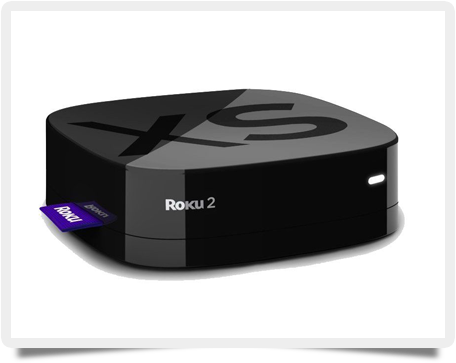
Roku is a streaming device that allows users to stream content from the Internet to the TV. Though many DVD players include some of the more common streaming sites like Netflix and Hulu, there are a lot more streaming sites out there that are only available on streaming devices such as the Roku.

roku_2

But what are the best Roku channels available?

Netflix: Netflix is currently the number one channel viewed on Roku. It requires a subscription to Netflix to view. The Roku channel code is (12).

Hulu Plus: It also has a monthly fee. Hulu Plus allows its users to see current television episodes as early as the day after they air. And if you are a fan of the classics, you can watch episodes of I Love Lucy and other favorites. It also has hundreds of movies for your viewing pleasure. The Roku channel code is (2285).

Amazon Instant Video: Although Amazon is new to the scene, they came bearing gifts. They have over 100,000 movies and TV episodes crossing all platforms and genres of entertainment. All of these items can be rented or bought and added to Your Video Library. The Roku channel code is (13).

HBO GO: This is a paid service, in a sense. It is included in a user’s monthly subscription to HBO. The streaming service gives viewers access to all of HBO’s movies and episodes, old and new. The Roku channel code is (hbogo).

Angry Birds: Yes, you heard right. The Angry Birds channel can only be installed on the Roku 2 and later models, and Angry Birds Space must be used on the Roku 3 device. Games are played via the Roku enhanced remote. The Roku channel code is (angrybirds).

This is a very small list. Other top titles include Pandora, YouTube, and NBA Game Time. There are other streaming devices on the market, but according to Parks Associates, Roku is the streaming device of choice. There are also a slew of private channels which can be shared or restricted to specific people. Go ahead and take a look at all the possibilities Roku has to offer. You may find it a necessary addition to your entertainment network. Then you can decide the best Roku channels for your household.

Photo credit: Wikimedia Commons

About the Authors

The Ultimate Guide to Home Network Setup

The internet has become such an integral part of the average person’s life—so much so that it’s hard to think back to what life was like without wireless internet connections available virtually everywhere we go. WiFi technology has made it possible for us to connect to the world wide web without any physical wiring needed—even within the comfort of your own home.

If you already have high-speed internet service in your home, creating your own home wireless network is fairly straightforward. Home wireless networks allow you to connect multiple web-enabled devices, such as PCs, smartphones, printers, and tablets, and foster an open line of communication between these common household gadgets. Not only can your favorite devices connect to the web, but they can also connect with each other to foster a streamlined home WiFi network.

While there are many complex facets within the internet realm, creating your own home network is one of the easier tasks you can do yourself. Using this comprehensive guide, we’ll walk you through everything you need to know about setting up a wireless home network.

What is a home network?

What are the benefits of setting up a home network?

How to set up a WiFi home network: Step by step

Wireless home network setup FAQs

What is a home network?

A home network is a group of web-enabled devices that connect to the internet and communicate with each other. There are two primary types of home networks; wired and wireless.

  1. A wired network connects devices via physical cable wiring.
  2. A wireless network connects devices without any cables.

During the early years of the internet, wired connections were most common. However, as wireless technology advanced and became more household-friendly, the vast majority of internet consumers opt for a wireless connection over outdated and somewhat limited wired home networks.

Additionally, for many families today, one computer is no longer enough and no longer convenient. Most modern households are home to multiple web-enabled devices like smartphones, tablets, smart TVs, e-readers—all of which depend on a strong wireless internet connection to operate.

What are the benefits of setting up a home network?

Setting up a home network makes it possible for computers and devices to communicate with each other via a shared internet connection. When it comes to enjoying wireless connectivity within your own home, building a home network serves as the foundation. Below, we’ve outlined some of the most attractive benefits of setting up a home network.

Internet connection sharing: Rather than paying for multiple ISP accounts to furnish your household devices with a direct internet connection or data plan, setting up a home network makes it possible to access the web across several devices via one simple internet connection.

Do note that your internet connection could slow down if there are too many devices on it. Many ISPs, however, make it easy to purchase service plans that accommodate however many devices you intend to connect.

File sharing: Network file sharing between computers provides more flexibility than using portable disk drives. Not only are you able to share images, audio, and text documents, but you can save backups of essential data on another device. Backups are one of the most essential yet overlooked perks of home networking.

Printer sharing: Wireless printing becomes a simple task when you have a home network in place. No need to run from one device to the other to ensure your print job is successfully delivered—just a few clicks on any of your web-enabled devices can result in a perfect print from anywhere in the house.

Smart device connectivity: Smart gadgets such as thermostats, light fixtures, surveillance systems, kitchen appliances, smoke alarms, TVs, and many more are among the latest additions to the world of WiFi. Each of these smart devices are able to communicate with each other by using a single home network that together forms an Internet of Things (IoT) network.

Home entertainment: If you’re interested in joining the ranks of cable-cutters swapping out their traditional cable subscription for a more affordable streaming media service, setting up a home network allows you to watch all of your favorite flicks from anywhere in your home.

Telephone service: Forget copper wires and landline phones—with a wireless home network, you can make phone calls using an internet-connected smartphone, tablet, or computer using voice over IP (VoIP).

How to set up a WiFi home network
Determine what you want

Before jumping into a home network buildout project, it’s important to first establish what purpose you want your home network to serve. To begin weighing your options, start by asking yourself the following questions:

  • Do you require access to a corporate network via a virtual private network (VPN)? If you work remotely from home, you’ll need a high-grade router that can handle VPN passthrough.
  • Are you a frequent online gamer? Do you play multiplayer online games through services like PlayStation Network or Xbox Live? If so, you’ll need a good router steeped in essential configuration capabilities such as port forwarding and quality of service (QoS).
  • Will you have more than ten devices connected to your WiFi home network? In order to ensure each device can perform at its peak, you’ll need a dual or tri-band router.

By answering these questions, you can better ensure that the network you build is perfectly suited to accommodate your web-connectivity needs.

Gather what you need

Building a wireless home network is a mere matter of arranging and configuring all of the necessary hardware infrastructure. You will need the following four devices to set up your home network:

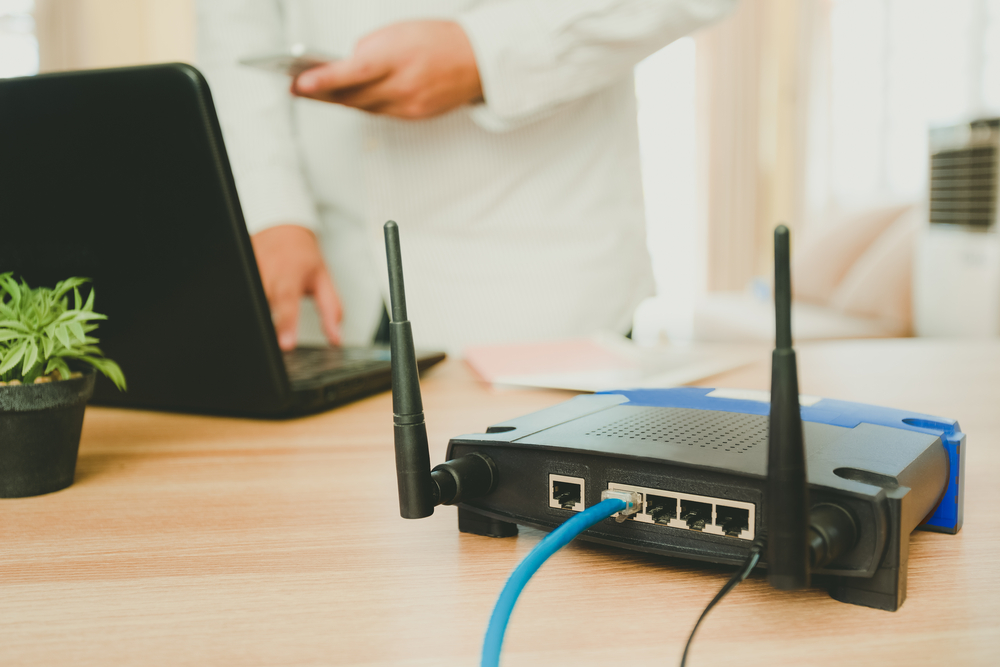
  1. A wireless router – This device is responsible for transmitting and broadcasting the WiFi signal from your modem to your web-enabled devices.
    Your internet service provider may offer a wireless router for a small monthly fee, and if you’re unsure of what to look for when purchasing a wireless router, this may be your easiest option. Should you decide to shop for your own router, be sure to do plenty of research before settling on one.
  2. A modem – There are three types of modems: cable, digital subscriber line (DSL) and dial-up. Connected to in-ground coaxial cables, modems act as digital translators that convert signals from your provider lines into signals your router can understand—in simpler terms, modems bring internet into your home.
  3. An ethernet cable – This cable is necessary to foster a physical connection between the router and the modem. This cable is usually included with your modem.
  4. A computer or laptop with wireless capabilities – In order to configure your router and establish security settings, you’ll need a web-enabled PC to complete your setup.

5 steps to set up your home network

Once you’ve gathered all of the necessary equipment and components to create your wireless home network, follow these instructions to set up and configure the router, and connect your devices to the network.
Step 1: Find the best location for your wireless router

Did you know that the placement of your WiFi router has a significant impact on the strength of your wireless signal throughout your home? Your WiFi router should be positioned on an elevated surface with clear space and limited obstructions.

Since WiFi signals travel perpendicularly to your router, it is necessary to ensure that your router is not situated somewhere on the floor. Doing so will only restrict the signal’s reach. Try to avoid installing the router too close to obstructive materials such as concrete, brick, or cement, because these thick materials can often impede signal quality.

The best place to position a WiFi router is somewhere central inside of your home. Whether that’s a hallway console table, a living room bookshelf, or an island countertop, the location of your choice should be away from walls and on an elevated surface. If you’re trying to figure out a few sensible alternative locations to put your router, check out the tips below for some practical advice.

Best places to put your internet router:

  • On a fireplace mantle in a central living room or den
  • On a coffee table located in a central hallway or living space
  • On a second-floor landing

Worst places to put your internet router:

  • In a kitchen near other appliances that can emit waves that might interfere with your signal
  • In a corner of your house surrounded by walls
  • On a windowsill where the signal can travel outside
  • In a basement or attic

Step 2: Power on your router

Before booting up your router for configuration, be sure to first turn off your modem.

Next, you’ll need to connect your router to your modem by attaching the two via an ethernet cable. As mentioned before, this cable is typically included with your modem or router.

Power on your modem, then plug your router into an AC power socket and wait at least 30 to 60 seconds for the lights on your router to illuminate. Once all lights are on, press the power button on your router to turn it on.

Step 3: Update your router’s default settings

Next, you’ll need to use your computer to set up your router’s default settings. Using your web browser, enter the router’s default IP address into the address bar to navigate to your router’s sign-in page. Your router’s instruction manual should include this information.

Once the router’s sign-in page appears, enter the exact sign-in details provided to you within your router’s instruction manual. When you have successfully logged in, your router’s settings page will appear. Locate and select the Network Name setting, then enter a unique network name, or Service Set Identifier (SSID). This name simply serves as an easy way to distinguish your network from neighboring connections.

Step 4: Encrypt your network

Setting up your wireless security is an absolutely essential step in protecting your connection and data. Locate the Wireless Security setting, and choose an encryption option. While there are several types of encryption you can use, we recommend opting for WPA2, as it is generally considered to be the most secure.

Enter and save your desired password. Be sure to choose a password that is at least 8 characters and includes numbers, letters, uppercase, and lowercase. Ultimately, the more complex your password is, the more secure your connection will be.

Step 5: Connect to the new wireless network

After encrypting your network, your wireless home network will become discoverable to other devices in your home. Access and join the network by accessing WiFi settings on each individual device and entering the password. Voila! Internet-access and home network creation in five easy steps.

Wireless home network setup FAQs

Can computers on the network run different operating systems?

Yes, regardless of your devices’ operating systems, all can connect to the same home network and coexist in harmony. For example, in the case that you have an Android smartphone, a Mac OS laptop, a Windows tablet, and a Linux desktop, you won’t have to worry about the systems creating any incompatibility issues while occupying and utilizing your network.

What should I consider when shopping for a wireless router?

  • Lifespan: Although you’ll be hard-pressed to find a manufacturer that puts an operational expectancy rate on their router, searching for reviews will reveal all you need to know about a particular router’s lifespan. Like many other high-use electronics, routers deteriorate with time and should be replaced every three to four years.
  • Price: The cost of routers can range anywhere between as little as $15 to as costly as $400. Generally speaking, the most expensive the model, the more impressive the performance—however, it’s key to consider the parameters of your budget first when pinpointing the best wireless router for your residence. For the average household, a router within the $100-$200 range will suffice.
  • Number of frequency bands: You will need to decide between purchasing a single-band, dual-band, or tri-band router when shopping for a wireless router. If you don’t need lightning-fast speeds and you don’t have any nearby neighbors that might interfere with your home network, odds are likely that a single-band router will satisfy your needs.
  • Range: As mentioned before, the position of your router is a crucial factor to consider when optimizing your WiFi signal strength. When shopping for a wireless router, be on the lookout for routers that offer a more expansive range that can extend your network’s reach to hard-to-reach places on your property.
  • Smart capacity: Not only are routers becoming more powerful, they’re also becoming more intelligent. Smart WiFi routers are engineered to provide seamless interaction and constant communication with mobile applications and network-connected devices. These futuristic smart-home gadgets effectively enhance your WiFi experience through automation.

How do I create a strong WPA2 password?

Creating a strong password is likely much simpler than you may initially think. Use the following tips to create an impenetrable WPA2 password to keep your home network safe and secure.

  • Stay away from obvious passphrases: Don’t use Password123, or abc123, or qwerty1234 as your password—these are incredibly easy to guess and child’s play for experienced hackers.
  • Use a mix of characters: Use uppercase and lowercase letters, numbers, and special symbols to craft a strong password that is near impossible to crack.
  • Make your password lengthy: Your password shouldn’t be shorter than 15 characters.
About the Authors

Three Streaming Over the Air Television Services You Need to Check Out

Streaming over the air television online is another way to trim your monthly cable TV bill. Here are three services that stream over the air TV via the Internet:

Aereo

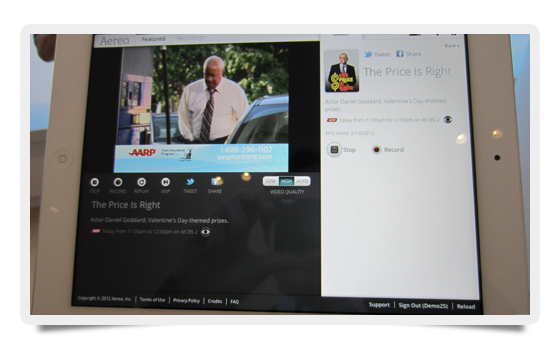
Aereo TV is $8 a month for 30 broadcast stations (including ABC, CBS, FOX, and NBC) plus a cloud-based DVR that provides 20 hours of programming; an additional $4 a month gets you 60 hours. The cloud DVR lets you pause, stop, and rewind programming. Plus, you can record two shows simultaneously (or watch one and record one at the same time).

aereo

Aereo is only available in a handful of markets — Atlanta, Boston, New York, and Utah — but it plans to spread the word. Aereo plays on any web browser, iPhone, iPad, Roku, or Apple TV streaming player and will play on Android soon. It’s important to know that streaming over the air television is not popular with networks, some of whom have sued, but Aereo has built its case around the fact that each subscriber gets his own micro-antenna (housed at an Aereo warehouse). Technically, this is antenna renting, and no harm is done.

Dyle

Your alternative to Aereo is Dyle TV, which broadcasts live TV on mobile phones. Dyle is an actual “antenna” that sticks out of your phone. This is bare-bones live TV here: live channels with no option to save or record programming (the service is free with a standard phone plan). As the service is in its infancy, it still has some time to figure out its place in the mobile market.

dyleTV

Skitter

Another alternative is Skitter, which streams TV stations like NBC, ABC, and CBS to a Roku device. Skitter launched in Portland, Oregon, and plans to expand soon; eventually, Skitter will be able to offer live TV on the Roku for a flat fee. The platform is similar to Aereo (or regular cable TV), and the video quality is more SD than HD, but things should improve in time.

What makes Skitter unique is that it has partnered with second- and third-tier phone company operators that are interested in offering TV services… without reselling satellite TV subscriptions. This business model helps keep legal pressure off Skitter (unlike the case with Aereo).

The Final Word on Streaming Over the Air Television

Over the air is not for everyone (especially if you have a steady diet of cable TV) but combine a good streaming service like Netflix with a good over the air television service, and you’re going to pay a lot less than you would for normal cable television. Happy streaming!

About the Authors

Who Has the Fastest Satellite Internet?

For businesses and users in rural regions, satellite Internet service is a must-have, as other options such as DSL or cable broadband just aren’t available. Mobile coverage can also be spotty with substandard speeds, especially when you can’t find 4G service. So searching for the fastest satellite Internet is a requirement to stay connected at the best possible speed when in the hinterlands.

WildBlueDish

Satellite Internet Is Priced at a Premium for a Reason

Considering the strong demand for broadband connections in rural regions, satellite Internet service ends up costing more per bandwidth when compared to DSL or cable. But sometimes you don’t have a choice when it comes to high-speed Internet.

A few companies specialize in providing satellite Internet services: most notably, the satellite television company Dish Network and its DishNet service, and HughesNet, which shares a common corporate history with DirecTV. HughesNet used to be branded as DirecWay and, before that, DirecPC, hinting at the closer relationship with their former corporate brother.

Despite the relative fame of those two companies, the fastest satellite Internet service arguably comes from a new service formerly called WildBlue and now branded as Exede Internet.

Fastest Satellite Internet Speeds: Behind the Numbers

Exede Internet offers download speeds of up to 12 Mbps for all plans, which trumps most of HughesNet’s service tiers, although the latter recently introduced a 15 Mbps service called Power MAX. Power MAX is priced at a premium compared to HughesNet’s typical service offerings, which normally provide download speeds of 5-10 Mbps — the same speeds also offered by DishNet.

Thresholds on Bandwidth

One very important thing to remember when pricing satellite Internet services is that they all require thresholds that limit the amount of bandwidth you can use on a monthly basis. Exede offers unlimited bandwidth during the non-peak nighttime periods, and all companies give you the option of paying for extra bandwidth once you’ve used up your monthly allowance.

So when looking for the fastest satellite Internet, Exede Internet is probably your best choice, unless you want to pay extra for the premium HughesNet plan. Either way, expect these companies to continue in their battle to be the fastest (remember: check your internet speed regularly with a net speed test provided by BandwidthPlace.com).

Photo credit: Wikimedia Commons

About the Authors

How to Keep Your Search Information Private

For most Internet users, search engines often are the center of their online experience. Since search engines are the guide to most of the Internet, the companies powering the systems typically have a wealth of search information on users — information which is often used to target advertisements, analyze trends, and even determine how businesses perform their day-to-day operations. The pool of information that search engines have on users is commonly referred to as a “big data” pile because of the extent of the information retained on users.

camera

Making Money From Basic Information

As discussed in an article from VentureBeat, when it comes to targeting advertisements, there are literally a googol (meaning the number one followed by 100 zeroes) possibilities to target customers. Ad targeting is so important that search engines such as Google and Bing have teams of scientists working around the clock to figure out more efficient ways to identify Internet users and target ads accordingly. Since search engines typically only make revenue from advertising, it is in their interest to do whatever it takes to ensure that users are clicking advertisements.

Google and Bing Aren’t the Only Options

When it comes to conducting online research, you don’t have to rely on Google and Bing. A handful of alternative search engines don’t retain search information or have strict privacy practices to protect user information. The How-To Geek provides an overview of five such engines. One of the most popular ones among Internet users is DuckDuckGo. The key feature of the service is that its privacy page outlines numerous precautions taken to protect user privacy. Overall, the key takeaway is that you can use DuckDuckGo without having to worry about your search information being retained indefinitely for tracking purposes.

When You’re on Google

Of course there are times when you need to use Google your search activities. Fortunately there are ways to protect your privacy when you use Google. Google provides users with a control panel to manage their search history preferences. This allows users to control which keywords are used for ad targeting. Unfortunately, Google still retains search information behind the scenes, which is a significant privacy risk.

For cases where privacy is needed when searching the web, you will want to use DuckDuckGo or a similar search engine, because the major search engines rely on user information to generate most of their revenue.

About the Authors

Your iPhone Can Be Hacked: Protect Yourself

When it comes to using smartphones, most users think their devices are immune to viruses and hacking. However, smartphones are much more vulnerable than you may think. Unlike traditional operating systems which have matured over the years, an iPhone can be hacked fairly easily because the iOS operating system is still, relatively speaking, in its infancy.

hacked-iPhone

Accessing Your Data

One of the biggest challenges of securing mobile operating systems is ensuring that applications only have access to the areas of the phone they really need. For example, would you want a game to be able to read your address book? Probably not; an article from Gizmodo, though, discusses how many applications are able to steal your data without your knowledge.

How to Protect Yourself

One of the simplest ways to protect yourself from mobile malware is simply to install a reputable antivirus suite on your mobile device. Lookout has been a pioneer in the mobile security space for decades, meaning that their security software has been refined over the years to deal with the increasing complexity of today’s mobile threats. Although this is a crucial step to securing your computer, running an antivirus program on your phone is not going to protect you from all digital threats.

The next way to protect yourself from mobile malware is to ensure that you pay attention to the permissions that you give to the apps installed on your phone. Although this step is a little tedious, it is the most effective way to prevent outside attackers from gaining access to your data. When you install a game, for example, if the app requests access to your address book, you might want to choose a different application.

The Importance of Common Sense

Although an iPhone can be hacked, by following the simple tips mentioned above and using common sense when downloading apps, you can protect yourself from most malware. The most important thing is that when installing apps on your phone, you should only install programs from reputable vendors and ensure that you actually have a need for the programs.

Photo credit: Flickr

About the Authors

How to Run a DSL Speed Test

When you’re using the Internet, sometimes it helps to know how fast your connection is so you can be sure you are getting the speed that you paid for. A DSL speed test can be crucial to ensuring that your service provider is delivering Internet at the speeds they promise. Although testing your Internet speed might seem daunting, you can easily measure your speed in one click by using a bandwidth speed test.

run dsl test

What to Look for in a DSL Speed Test

When it comes to picking a provider for your DSL speed test, you should make sure the test works uniformly on both traditional and mobile setups. Having a single point to run the tests is crucial, because it will ensure that when you compare speeds, the results are accurate. Many speed test sites are available. Choose a speed test provider which uses HTML5 and responsive code. The benefits of these technologies is that the speed test can run in a variety of browsers, be they on mobile or traditional setups.

Other Considerations

Another key consideration is where the servers performing the speed test are located. Typically, the provider will have servers on the East and West Coasts plus servers in Central America, because those are the major areas where many websites house their servers. You should run speed tests on multiple servers, because distance from your computer to a server plays a significant role in determining data speed.

How to Improve Your Internet Speed

If it appears your Internet service provider is not providing you with the speeds it advertises, you might want to call the ISP’s customer service line and ask about the network performance in your area. Since Internet pipes are often shared by multiple customers, you might be having a slow connection due to distance from the data center or because of overuse by other customers. In many cases, the Internet provider will be able to send an engineer to survey the network infrastructure to resolve any trouble spots.

About the Authors

What’s Best for Social Planning: HootSuite or TweetDeck?

There’s no denying that social media plays an important role in how businesses of all sizes communicate with their customers. HootSuite and TweetDeck are two leading tools businesses use for online social planning and networking. But which one works best for you? The answer depends on your choice for favorite social media network.

twitter_t-logo

TweetDeck Is Twitter’s App for Social Media Planning and Analysis

If your business concentrates its social media network efforts on Twitter, then TweetDeck makes a compelling choice for a social planning application. Created by Twitter Inc.’s developers, you can rest assured that the company provides its own app with the most accurate statistics and analytics to help your business to plan, develop, and manage your social media campaigns — albeit those focused on Twitter.

The free application, with versions for Windows and Mac OS X, essentially serves as a Twitter dashboard, with customizable columns and filters. You can manage an unlimited number of Twitter accounts, scheduling Tweets for each of them based on your audience. A convenient alert feature keeps you up to date with any Twitter-based activity related to business or businesses.

TweetDeck is a must download for business owners who rely on Twitter to connect with their customers. You should consider downloading it even if you use other social media networks.

HootSuite Supports Other Social Media Networks

If your business’s social media strategy includes social networks like Facebook, LinkedIn, and Google+ in addition to Twitter, HootSuite looks to be a better choice for a social planning application. The free version of the tool handles up to five accounts with some basic functionality. More advanced features such analytics, security, and unlimited RSS feeds are available with the Pro account, with prices beginning at $8.99 per month. The Enterprise level adds even more features for a still higher price.

Serious businesses with a wide-ranging social media strategy will find that HootSuite is their only real choice, considering its support for social networks other than Twitter. Still, many smaller businesses focused on Twitter only will find that TweetDeck serves their needs perfectly. Since both programs are free — HootSuite only at the lowest level — download both and see which one best meets the needs of your business.

Photo credit: Flickr

About the Authors

Online Movie Rental Sites Other Than Netflix

Netflix_logoThe way we watch movie and TV shows has changed over the years. With a decent Internet connection, you are now offered unlimited choice of what to view, thanks to online movie rental sites such as Netflix. Yet there are other sites that offer equal and, some would argue, better value for the money. Let’s take a look at three of the best:

Hulu

If there’s one online movie rental site that comes close to Netflix, it’s Hulu. Comcast, 21st Century Fox, and the Walt Disney Company all have vested interests in Hulu, so it’s likely that it’s here to stay. Offering premium video content from around the world, as well as from a multitude of networks and studios, Hulu offers plenty of movies and TV shows to enjoy. Thus far, it is only available to viewers in the US, but the site has plans to branch further afield. And just like Netflix did with House of Cards, Hulu has already produced its own original content in Battleground. The site’s five-year deal with the CW ensures viewers can use the site to stream next-day content from five of the six major networks, which isn’t bad for $7.99 a month.

Amazon Instant Video

As you’d expect from Amazon, its online movie rental site offers an unlimited array of new TV shows and classic favorites for subscribers to stream. Besides its subscription service to a range of popular titles, Amazon also offers Instant Video, which enables you to keep up-to-date with the latest releases without making a trip to the cinema. Additionally, you can subscribe to an ongoing TV service: once the show has been aired, you can catch up the very next day.

CinemaNow

Unlike Netflix and the other online movie rental sites on this list, CinemaNow’s biggest selling point is that it doesn’t force the viewer to subscribe to a monthly plan in order to use its services. CinemaNow offers a pay-per-view plan beginning at $2.99. You can rent your favorite titles, or you can buy and download them too.

Photo credit: Wikimedia Commons

About the Authors

What’s New With the New Kindle?

The Kindle Fire is great for watching films, playing games, and a whole host of other things, but its primary function is not as an e-reader. Fortunately, there’s the Kindle Paperwhite. The arrival of Amazon’s new Kindle Paperwhite hasn’t had a huge amount of fanfare, but the device is definitely worth a look. Here’s why.

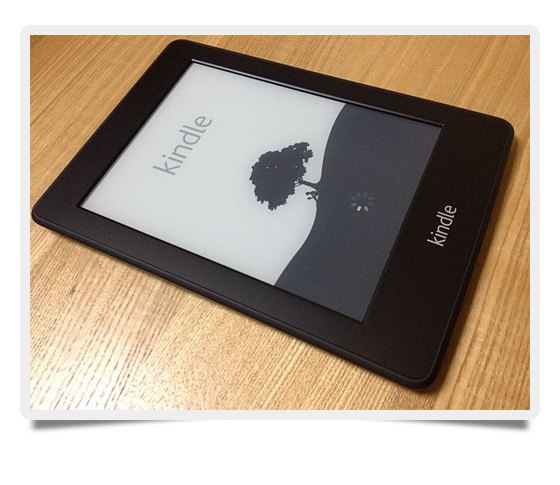
Kindle_Paperwhite_3G

Kindling the Fire

Amazon revolutionized the way we read books and made bookshelves redundant in the process. The Kindle was a minimalist device which allowed us the luxury of carrying our entire library in our pocket, yet there was one drawback: As with traditional books, you couldn’t read the Kindle in the dark without external illumination.

Amazon solved this problem by introducing the world to the Kindle Paperwhite late in 2012. The new Kindle emitted a soothing, eye-friendly glow, allowing bookworms to read well into the night without disturbing anyone or anything else. What’s more, dedicated readers could read for up to eight weeks on a single charge. In contrast, try watching a film on your Kindle Fire and seeing how fast the battery runs out.

Making the Best Better

Of course, the Paperwhite had a lot more to it than a handy internal night light. Critics called it the best e-reader Amazon had ever made, and serious book lovers everywhere were unanimous in their praise for the simple but hugely effective device. The question had been: “How will Amazon ever improve upon the most refined product in its category?” Well, they were able to do just that by upgrading the Kindle device with something almost identical in name and appearance but with a few subtle and clever changes to make a great little e-reader a little bit greater.

What Does This Paperwhite Do Differently?

Don’t expect any radical developments with the new Kindle Paperwhite e-reader. The dimensions are the same as its predecessor, as is the matte black, rubbery plastic case and the location of the buttons, but why change a simple and aesthetically pleasing design? What is noticeably different with the new Kindle is that the logo on the rear has been replaced with an Amazon one, and the e-reader is noticeably lighter in the hand. Courtesy of a new version of Amazon’s exclusive E Ink technology, the Paperwhite’s screen offers better contrast and reflectivity, plus an upgraded light, which all results in a crisper and sharper display, moving it one step closer to Amazon’s ultimate goal of “having the Kindle disappear in your hands.” The Paperwhite’s processor is 25% faster, making this Kindle Amazon’s most responsive one yet. There are also various software upgrades to the new Kindle, such as an improved page flip function and a new word lookup tool.

The Final Analysis

While new Kindle retails at the exact same price as its predecessor, owners of first-generation Paperwhites will probably not rush to buy the new model because the new features aren’t as enticing to someone who already owns a Kindle. What the new Paperwhite does do is make it a little more of an attractive proposition for anyone wavering, someone who loves to read but doesn’t yet own an e-reader, to buy Amazon’s new product, which is by far the best in its class.

Photo credit: Wikimedia Commons

About the Authors