How to Run an Internet Speed Test for Xfinity by Comcast

Running a bandwidth speed test can provide answers to your many questions about your internet connection. Whether you’re looking to find out how quickly you can download and upload files to the web or curious to know if you’re getting your money’s worth from your provider, an internet speed test offers the insight you need.

Comcast Xfinity is the largest internet service provider (ISP) in America. Boasting high-quality signals, extensive coverage across the nation, and reliable speeds and service, it’s no wonder why Xfinity is lauded as America’s best internet experience. However, on an individual consumer basis, no two connections are the same, meaning one household may enjoy lightning-fast Xfinity speeds while the household down the street struggles with a spotty connection.

No ISP can claim to provide flawless reliability and availability, which means that for some, broken or slow internet is an everyday reality. The Xfinity speed test tool measures your Xfinity internet speed by calculating the time taken for each byte to travel from the remote Xfinity server to your web-enabled device. Do note that these speed test results are oftentimes lower than your plan speed due to a number of variable factors outside of your ISP’s control.

Using this guide, we’ll walk you through how to run an Xfinity speed test, help you understand your results, and answer any questions you may have about your internet speed and web connection.

What is an internet speed test?

An internet speed test measures the broadband connection parameters of your internet. This process is completed by sending a small file from the server and analyzing the time it takes to download the file and then upload it back to the server.

Internet speed tests measure a number of important features including:

  • Upload speed
  • Download speed
  • Bandwidth
  • Ping

Do note that some internet speed tests do not report on all of the aforementioned features, but speed and bandwidth are standard measurements across all tests.

How to run an Xfinity internet speed test: Step by step

Step 1: Optimize your test

Before you run your Xfinity speed test, do the following to ensure your test is as accurate as possible:

  • Disable any software that can slow down the test
  • Disconnect any hardware that can cause latency issues

Step 2: Access the Comcast Speed Test

Here, you will simply be asked to “Start Test.” The test should take no longer than 30 seconds. When complete, the page will automatically refresh to your Xfinity internet speed test results.

Step 3: Survey your results

Your speed test results will present a checklist of five items:

  • Send/receive email
  • Browse the internet
  • Stream HD video
  • Stream 4K video
  • Speedy downloads

You will see a green checkmark next to the items your internet connection is suitable for and a red X next to those that your connection is too slow for. This will give you a better gauge of how your internet connection is (or is not) working for you.

On the same page, select “Show More” to reveal your upload speed, latency, protocol, and host. To get a more well-rounded understanding of what each of these means and measures, check out the glossary of speed test terms below.

Xfinity internet speed test terms

What is upload speed?

Upload speed is the rate at which data is transferred from your device to the internet. Upload speed effectively measures how many megabits of data per second you can send from one device to another device or server on the internet. Common online activities, like sending emails, video-chatting, and tournament-style games, require speedy upload rates. Upload speed is measured in megabits per second (Mbps).

What is download speed?

Similar to upload speed, download speed measures the time it takes for data to be transferred from the internet to your device. Most bandwidth connections are designed to deliver faster download speeds than upload speeds as the vast majority of online activity (streaming videos, loading webpages, etc.) are dependent upon fast download speeds.

What is ping?

Ping measures the reaction time of your connection, reporting how fast you’re able to get a response after you’ve sent out a request. The faster your ping, the more responsive your connection. This especially true of applications and programs where timing is crucial. Ping is measured in milliseconds (ms).

What is Mbps?

Mbps is the abbreviation for “megabits per second.” This unit of measurement surveys the bandwidth capacity of an internet connection, determining how much data can be transferred each second.

What is bandwidth?

Bandwidth is the maximum amount of data that can be transmitted via internet connection within a specified amount of time. Though often mistaken for internet speed, bandwidth actually refers to the volume of information that can be sent rather than the rate in which it is sent. Bandwidth is traditionally expressed in megabits per second (Mbps).

What is latency?

Though similar to ping, latency is the measure of time between a request and a result. Latency tells you how much time it takes for a signal to travel to your ISP’s server and back. Lower latency means shorter lag time, so, the lower that number, the better. Latency is measured in milliseconds (ms).

Why is my Xfinity internet speed so slow?

If you’ve been struggling with a slow and laggy Xfinity connection, there are several possible explanations that could be the culprit. Take a look at these five common issues that may be holding you back from a speedy web connection.

  • Your WiFi signal is bad

A weak, spotty WiFi signal may be the reason why your internet speed struggles to keep up with your online demands. Jarring internet traffic slowdowns, excessive download times, and frequent disconnection are all tell-tale signs of a bad WiFi router.

Though WiFi routers are robust pieces of technology, they are subject to slowed performance and breakdowns with age. While many basic issues can be solved with a simple router reset, others may require a full router replacement to get your connection back up to speed.

  • Network latency is too high

Internet performance is largely dependent on two essential elements: bandwidth and latency. As mentioned before, when latency is too high, your performance quality plummets. From network throttling to congestion, there are a number of factors out of your control that can affect your Xfinity network latency.

  • You’re on a low-tier internet plan

Like any ISP, Comcast Xfinity offers a number of service plans that work on a tier system—the faster the plan, the more expensive the bill.

If you’re unsure of what internet speeds your Xfinity plan promises, log in to your Xfinity account and access your plan details. There you’ll be able to see what speeds you are paying for versus the speeds you actually get. In the event that your Xfinity speed test results don’t match up with what your plan offers, reach out to Xfinity Support to speak with a representative who can explain or mend your connectivity issue.

  • Your device may have a virus

If your computer is infected with any type of malware or virus, your web connection will likely suffer. These malicious bugs can fester on your computer and curb your internet speeds. Spyware, in particular, can monopolize your internet connection and cause delays, ruining your PC performance altogether.

Running your system through an antivirus check can help you determine whether or not a digital infection is the cause of your laggy web speeds.

  • Your computer is too slow

Poor PC performance oftentimes signals poor internet connection, too. If you’re dealing with a laggy rig that struggles to accommodate your everyday requests, your PC may be the problem, not your internet connection. To check if this is the case, run an Xfinity internet speed test on a different device. If the results are significantly faster than that of your PC test, it’s safe to assume that your computer is the problem middleman.

Freeing up hard drive space, clearing your cache, deleting files, and emptying your digital trash can are all easy ways to speed up your computer and make more room for speedy connectivity.

What factors can alter my Xfinity speed test results?

In order to reap accurate speed test results, you must first ensure your environment is ideal for the test. There are a number of factors that can warp your speed test results and obscure your true results. These factors are either software or hardware discrepancies. Let’s break it down:

Software

Certain types of software programs installed on your computer can cause major connectivity slowdowns. If you’re running too many apps that require a web-connection to function, performance will likely take a hit. Some software programs also run in the background without you knowing, slowing you down all the while. Not only can software affect your real-time connection quality, but it can also affect your Xfinity speed check results.

Firewalls, antivirus programs, and administration tools are common PC software programs that can slow down your speeds and alter your speed test. These programs effectively monitor each and every piece of data that is transmitted to the computer and, in some cases, supplies extra data to help with encryption. Before running an Xfinity speed test, be sure to disable all of these programs.

Your browser of choice (Chrome, Safari, Edge, Firefox, etc.) may also yield different results.  Each browser varies in its performance capacity, which is why you may see different results from an Xfinity speed test conducted in Chrome versus Safari. Though there is no definitive answer to which browser is best, it’s wise to run your speed test on your most preferred browser to get an accurate glimpse at your regular speeds.

Hardware

All types of web-connected devices can produce sporadically different speed test results even if they’re using the same exact ISP. The speed test results you receive on a tablet (or other mobile devices) will likely be different from the results you yield from a desktop computer due to differences in available bandwidth, internal hardware, and connection type.

Your internet speed heavily depends on the availability and quality of certain network equipment. In most cases, the router or ethernet cable are the most important pieces of hardware responsible for connecting you to the web.

If you’re dependent upon a wireless router connection via WiFi, the odds are highly likely that your speed test results will be slower than that of the speed you’d get from a direct, wired ethernet connection. Ultimately, stability plays a significant role in determining your internet’s performance.

The number of users on a single household connection can also affect your internet speeds. This is also true of your larger ISP network connection. If you happen to conduct an Xfinity internet speed test during work hours while most people are active online, the results are likely going to be less impressive than the results you’d get during a test beyond peak hours.

What is considered fast internet speed?

The FCC has outlined the parameters of fast internet as a connection offering download speeds of at least 25 Mbps and upload speeds of at least 3 Mbps. These speeds can seamlessly support most common online activities, from HD video streaming and online gaming to web browsing and music downloading.

Download speeds of at least 25 Mbps can easily accommodate the average household’s needs, but if you have a larger household or need extra bandwidth and speed to meet more intense online demands, you may consider opting for a more sizable plan.

What is considered slow internet speed?

Based on FCC evaluations, download speeds less than 25 Mbps are too slow to be considered broadband, thereby objectively categorizing them as slow internet speeds. Speeds measuring below 25 Mbps will likely subject users to frequent video-buffering, difficulty connecting multiple web-enabled devices, and a slew of other frustrating connectivity issues.

It’s important to note that DSL is the most common type of internet that offers speeds below the standard 25 Mbps. DSL may not be as popular as it used to be, but it still provides a sound solution for those looking for a reliable connection to complete basic online activities, including streaming, online gaming, casual browsing, and more. Ultimately, if your connection is under 25 Mbps but provides a fast enough connection for you, there’s no cause for concern.

How can I make my Xfinity internet faster?

Before contacting Xfinity Support, check to see if you’re running any ongoing downloads or bandwidth-hogging programs that could be slowing down your connection. Using our suggested hardware and software modification tips, you can run as many speed tests as you need to achieve the most accurate results possible.

If your Xfinity speed test results still seem too slow for your liking, try rebooting your device, modem, and router. Oftentimes this can repair any slowdown problems you may have encountered.

If all else fails, contact Xfinity Support for help. A service representative may be able to help you solve your connectivity issues or guide you to a higher tier plan better suited for your online demands.

About the Authors

AT&T Slow Internet: How to Increase Slow ATT WiFi Speed

Speed is the ultimate measure of quality for your Internet connection. Sure, you also need a service that won’t drop data packets or randomly sever your network link, but the less time it takes you to download and upload files, the better. Most providers offer a speed test tool you can run to determine the average speed of your Internet connection, and AT&T U-verse is no exception. Here’s what you need to know about running a U-verse test:

spedometer

Know Your Ping

To determine the speed of your Internet, a test needs to take into account two critical factors: how long it takes to download a file, and how long it takes to upload that same file. In addition, it’s worth knowing your “ping,” which is a measure of the time it takes your computer to get a response from an HTTP request from your Internet provider’s server. Ping is typically measured in milliseconds — the lower this value, the better. A ping below 100 is good, while anything under 50 is great, especially for gaming.

To test download speed, most tests use a run time of 10 or 20 seconds. During this time, your computer downloads small files from a web server. Once the test is complete, you’ll get a measurement in megabits per second (Mbps). The higher the number, the better. For uploads, this process is reversed — your computer sends files to the server — but the results are reported the same way.

Measuring the Last Mile

Many speed tests use what’s called the “last mile” as their standard. This term refers to the final distance data has to travel from your Internet provider’s “hub” to your computer. It’s here that most connections begin to slow, and thus it is the best measure of everyday performance. Ideally, the last mile speed of your connection should be same as advertised by your provider: if you’re paying for 10 Mbps downloads, for example, a speed test should put you in the 9-10 range.

Using the AT&T U-verse Speed Test

Using the AT&T speed test is simple. Start by navigating to AT&T’s test page, then click on the test button. You’ll see a real-time result as the test progresses, indicating how quickly data is being uploaded or downloaded. When the test has finished, you’ll get an onscreen report. The test is a great way to make sure your Internet is performing at its peak; if it isn’t, the test gives you a place to start troubleshooting. You may want to consider running several speed tests in addition to the one offered by your provider — AT&T recommends the Ookla SpeedTest, for example, and Bandwidth Place offers another — since tests may use slightly different metrics to return their results.

AT&T provides an easy way to test U-verse download and upload performance, helping you make sure you’re getting exactly the connection you paid for and at exactly the right speed.

Photo credit: Flickr

About the Authors

What’s New With the Surface Pro 2

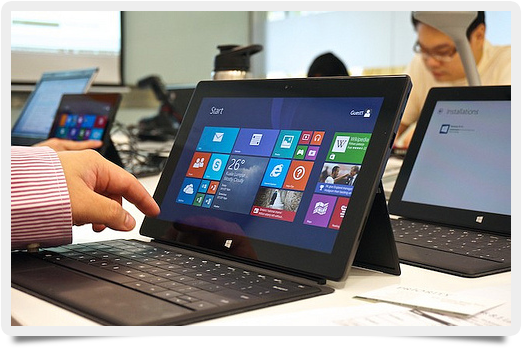
The Surface Pro 2 is an upgrade to Microsoft’s less impressive Surface Pro, which was released last year as Microsoft’s introductory tablet. The original Surface spouted Windows 8, which many consumers were not used to, and there was not much opportunity for adding extra applications. The kickstand, which was a bragging point for Microsoft, was not that durable and did not meet expectations.

surface-pro-2

Microsoft took the relatively low sales numbers not as a failure, but as a sign that their tablet just needed a few changes. So, they released the next generation of tablet. There is a version 2 model and a Pro 2 model.

Microsoft claims that the Surface Pro 2 is good enough to replace your laptop. Here are some of its main features:

Battery Life: The battery life is supposed to last 75% longer than the original Surface Pro.

Faster Processing: The tablet comes with an Intel Core i5 processor and Intel’s HD Graphics 4400 chip. This combination allows better processing, and even better game play, but it is not going to hold up to the higher-end video games. However, it does boot up quickly, has no real issues with browser games, and has an overall good rating for increased speed. In fact, The Verge says it is “insanely fast for a Windows PC.”

New Ports: The Pro 2 comes with a full USB 3.0, allowing HD video, mini display port, and a micro SD card reader.

Kickstand: Microsoft has made the kickstand more durable and improved on the design. Its new dual-angle feature allows a more comfortable experience, whether the user is using the Surface on a desk or in his lap.

Software: The Pro 2 has an improved Windows 8.1 installed and allows applications to run simultaneously.

Storage: The base model comes with a decent 64GB, but consumers can upgrade to 128GB, 256GB, or 512GB.

Freebies: Those who purchase the Surface Pro 2 will receive 200GB of SkyDrive storage for two years and free voice calling via Skype for one year absolutely free.

The Pro 2 is definitely an upgrade over the original model, but will it hold its own against the Apple iPad? The Pro 2 is a little more expensive coming out of the gate, but it has some pretty cool features that Apple does not yet have. It should definitely place Microsoft into the competition for tablets. As the two companies start to improve on their devices, the prices will most likely be driven down, and the consumers will split the market as they usually do with these two companies.

Photo credit: Flickr

About the Authors

Fingerprint Reader Security: Real Protection for Tempting Apples?

In September 2013, Apple announced its Touch ID system, available with the iPhone 5s. Instead of requiring users to input a four-digit pin to unlock their phone or authorize iTunes purchases, the technology relies on a small fingerprint sensor underneath the home button. Users have been told this fingerprint reader security makes their device less likely to be hacked, but is the hype accurate? Are Touch ID-protected iPhones really more secure?

Leitordedigitais-iphone5s

Touch and Go

The Touch ID system relies on a sub-epidermal fingerprint reader which scans the finger of your choice and then stores it as a mathematical representation on your iPhone’s A7 processor. This data cannot be reverse engineered to produce an accurate representation of your print, nor is it stored in the cloud. In addition, each Touch ID sensor is tied to a specific A7 chip. This means taking one out of an iPhone 5s and swapping it for another will prompt an error message, even if both have never been used.

To use Touch ID, iPhone 5s owners choose the finger they want to use, have it scanned, and then place it over the home button for recognition. According to CNET, if the scanner fails after three attempts, you reboot your phone, or don’t use it for more than 48 hours, the system will go back to asking for your passcode. And any data you have stored in iCloud can’t be accessed via fingerprint scanning — you’ll still need to provide a password. By all accounts, Apple’s fingerprint reader security works almost flawlessly to recognize legitimate users.

Illegitimate Access

A recent Ars Technica article talks about efforts to hack Apple’s Touch ID — efforts which were successful after just 48 hours. Using a laser printer and camera with higher resolution than that of the iPhone 5s produced a cloned fingerprint, which was able to easily fool the fingerprint reader security and allow access. Some experts called the technique “too difficult” for everyday hackers to attempt, while others said that the materials were readily available and amount of time required was not substantial for anyone — a private detective, technology-obsessed teenager, or the FBI — with the motivation to break into your iPhone. It’s also worth noting that Touch ID doesn’t function as a form of two-factor authentication, which would also increase its security. In a two-factor model, just getting to the reader itself would require a password.

According to Apple, however, less than half of all iPhone users actually enable the four-digit passcode lock, leaving their phones entirely open to public scrutiny if lost or stolen. The fingerprint scanner doesn’t require owners to remember anything or carry any kind of special access device —instead, just touching the home button is enough to verify their identity while simultaneously protecting their privacy. The result? Simplicity should lead to greater adoption.

Bottom line? Touch ID isn’t entirely secure. Motivated hackers or interested third-parties can gain access to your iPhone 5s if they’re determined, but that doesn’t mean this form of fingerprint reader security has no value. Thanks to ease of use, more owners should enable the technology, and for day-to-day use, Touch ID helps better protect your phone.

Photo credit: Wikimedia Commons

About the Authors

The Best WiFi Router for Streaming Video: 3 Options

If you want to start streaming to your TV (or say, Chromecast) and you’re just not able to connect an Ethernet cable directly, then you need a WiFi router — and with Chromecast, you need a WiFi router, period!

wifi-router1

So, maybe you have one already, from 5 years ago, but have noticed how bad it performs when streaming video. Here’s the truth about WiFi: If you don’t go big, you get poor streaming (take into account your bandwidth as well — make sure you perform a speed test regularly). But don’t worry, “big” is only $136-$220, a one-time expense for a router that will last you at least three to five years. Plus, you don’t want to “cheapen” your streaming video experience. Face it. It’s time to upgrade!

So, here are some WiFi routers that are both cost effective and able to deliver high performance for streaming video:

Trednet TEW-812DRU AC1750 Dual-Band Wireless Router

At $136, this is the most affordable WiFi router with the best performance, plus, it’s incredibly easy to use. Another great feature, not available on most routers: you can set up as many as four main WiFi networks (and another four guest WiFi networks on each band). That is sixteen concurrent WiFi networks!

The router has good range (but not as insane as the others listed here), but with solid performance and cheap pricing — for a router — this one is a great alternative to super-high-end routers and perfect for streaming video and playing online games.

At $160 dollars, this is a much better router for the price. You get a fast router, with great WiFi coverage, plus, USB 3.0 support.

It has a vertical cylindrical design and includes common features found in high-end routers including guest networking, iPv6, port forwarding, QoS (quality of service), and firewall. What you have is an advanced router, for a more reasonable price.

Asus RT-AC86U Dual-Band Wireless-AC 1900 GB Router

At $220 dollars, this WiFi router is specifically for video streaming aficionados (and gamers). You can simply do anything with this router: online game, mobile game, mobile Skype, Chromecast, Netflix streaming, you name it.

This is a powerful router, with huge range (remember: when streaming video to your TV over WiFi, your worst enemy is lag and buffering). This is the “no-holds barred” cyber-behemoth of routers, so if you want the best, here it is.

About the Authors

Miracast: An HDMI Alternative?

Most consumers are familiar with high-definition multimedia interface (HDMI) cables. Over the last five years, these cables have become the de facto standard for televisions and gaming devices, offering better picture resolution and signal bandwidth than devices supported by “component” cables. In addition, more advanced versions of HDMI support 3D graphics, higher refresh rates such as 120 Hertz, and even Ethernet connectivity. But despite all these advantages, there’s a new, wireless technology which may supplant HDMI as consumers’ top choice: Miracast.

Wi-FI_Alliance_Logo

Mirror, Mirror

The idea behind this technology is quite simple, according to CNET — the wireless delivery of high-definition video signals from desktops, tablets, or smartphones to other devices such as televisions. Miracast supports 1080p resolution and 5.1 surround-sound audio for television, is already part of the Android 4.2 operating system, and is certified by the Wi-Fi Alliance. Instead of requiring a cable and two HDMI-capable devices, however, the technology only requires you to have one supported device and, in the case of televisions, a dongle — which go for $40 to $60 at many online retailers. Once the two devices “find” each other, a wireless connection is established much like Bluetooth: instead of using a home’s existing wireless network, the devices form a onetime, secure connection to each other.

Anything displayed on your smartphone or tablet will then be displayed on your television; if your device shuts off, your TV will also go black. While this codependency might sound like a handicap, it actually works in Miracast’s favor. Since videos, apps, and music are mirrored directly from device to device, there’s no need for an application to “support” them at the receiving end. In addition, this mirroring means you can play DRM-enabled (digital rights management) content with no problems.

A Better Option?

This technology has been on the market for several years but is only now starting to establish a foothold. This is, in part, because short-range wireless networks have been historically over-matched by cable alternatives — here, however, Miracast really can compete with HDMI in terms of quality and price. There are several caveats, though. Connection to a television or computer drains any device quickly, so make sure to have it plugged in during use. In addition, some dongles experience lag or difficulty establishing a connection, and older smartphones don’t support multitasking, meaning once a device is creating Miracast content it’s effectively locked. Sony and LG — to name a few — have already produced multitask-friendly phones.

Miracast offers a wireless version of HDMI with equivalent quality but without the need for HDMI ports at each end. Short-range wireless and true mirroring make this a technology to watch as the smartphone and television end-user experience evolves.

About the Authors

How to Get a Lower Internet Bill

In the early days of broadband, it was common to see Internet plans offering unlimited amounts of data. However, many Internet providers today are adopting alternative billing models to keep pace with the surge of demand for high-speed Internet. Regardless of whether your provider bills you per gigabyte or you are subject to throttling which occurs after a threshold is met, you can get a lower Internet bill by following a few simple tips:

file000290666105

Use Free WiFi When Possible

A little-known fact for cable customers is that many cable companies are now offering high-speed WiFi access in many locations across the US at no charge to their customers. In many cases, this service is designed to help customers bypass the astronomical costs of cellular data when on the go. If you often travel outside your cable company’s territory, thanks to mutual arrangements from multiple cable companies, you can continue using the complementary WiFi even while traveling.

Even if you aren’t a cable customer, many restaurants and businesses offer WiFi at no charge to customers. Although many road warriors use these networks for their laptops, almost every modern smartphone supports WiFi, meaning if you expect to be at a location for a while, you can save a bit of data by connecting your smartphone to the wireless network.

How to Save Data at Home and get a lower internet bill

Although cellular data is typically the biggest area of focus for consumers who want to lower their Internet bill, there are a few simple tips you can take to keep your home Internet costs in check. One of the biggest areas for excessive Internet usage is BitTorrent and other forms of peer-to-peer file sharing. While these services can be used for legitimate purposes, many Internet providers look down on such programs due to piracy concerns.

While avoiding BitTorrent at all costs isn’t practical for all users, if you disable BitTorrent uploads in your client, you can greatly improve your standing with your Internet company since you won’t be running a server for other people to download content. Streaming content is another activity that can use of significant amounts of data. However, most Internet providers target heavy BitTorrent users due to privacy concerns. Streaming content, on the other hand, is unlikely to cause issues, since it often is legitimate.

Despite many Internet providers’ rising rates to compensate for high Internet demand, you don’t have to pay a premium for such services. By following the simple tips mentioned above, you can get a lower Internet bill.

About the Authors

Video Game Ratings: What Parents Should Know

Video games have come a long way since Donkey Kong and Pac-Man. Graphics, gameplay, controls, and story lines have developed to the point where gaming is akin to entering a virtual world with its own set of rules. Though many of these worlds contain graphic violence, parents can now consult a video game ratings system, which is a reliable guide to which games are and are not suitable for your child. Here’s what you should know:

The Threat of Violence

215px-ESRB_Adults_Only_18-.svg_Any responsible parent should be aware that many games on the market contain an excessive degree of violence. The Grand Theft Auto and Call of Duty series are renowned for their innovative and imaginative gameplay, but they are also equally notorious for the degree of violence they contained. Although there will always be an ongoing debate surrounding the moral question of such violence in games, there is no question that age restrictions should be put in place to prevent children from being exposed to potentially upsetting material.

The Guardian Angels

The Entertainment Software Rating Board (ESRB) has developed a video game ratings system which has been widely adopted by game publishers and retailers as the most tried and tested system of its kind in the US. It allows parents to make informed choices about the age-appropriateness and suitability of video games and apps through a universal rating system based on child development, impartial information, and parental concern. The board is a nonprofit, self-regulatory body that holds the video game industry accountable for its marketing methods. It administers a three-part video game ratings system, which includes age-appropriateness, content descriptors, and interactive elements, which analyzes if the users’ location and personal information are shared. Additionally, the ESRB website offers in-depth and informative descriptions about the games.

The Ratings

The ESRB video game ratings system, which is printed as black and white letters on the outside of a game’s packaging, are as follows: EC is for Early Childhood; E is for Everyone; E10+ is for Everyone over Ten; T is for Teen; M is for Mature (17+); A is for Adults Only; and the rarely seen RP means Rating Pending. In addition, ESRB-rated games have content descriptors on the back of the box which indicate elements such as “Intense Violence,” “Mature Sexual Themes,” and “Drug Reference,” which may have caused a particular rating. Remember, you know your own child best, so you can’t rely completely on a rating system when it comes to what games may or may not be suitable for him, but the ESRB  does offer a very reliable, user-friendly and invaluable service.

Photo credit: Wikimedia Commons

About the Authors

Comparing Wireless Phone Chargers

Although smartphones have gotten more powerful over the past few years, battery life is one of the few areas where technology has failed to keep up. Smartphone manufacturers place an emphasis on having the latest and greatest features, but battery life has always remained a significant issue as consumers demanding increasingly powerful phones. Fortunately, a new breed of affordable wireless phone chargers is available to make powering your phone a bit less of a pain. With these chargers, you simply place your phone on the charging surface and you are good to go. No more worrying about cables and the mess that comes with them.

Inductive_charging_of_LG_smartphone_-1-

RAVPower Qi-Enabled Wireless Phone Chargers

Aside from getting high reviews for many of their products on review sites, the RAVPower charger makes this list because it is compatible with many phones — such as the Nexus 7, Nokia Lumia 920, and the HTC 8X — without requiring a special case. This is because these phones, as well as many others, support Qi inductive charging technology, which allows a phone to charge without cases. For other popular phones, such as the Galaxy S3 and S4 and iPhone 5s/5c, a special case is required to make the charger work.

For users who don’t need a specialized case for the wireless charger, it is important to note that cases thicker than 5 mm/0.2 inches thick can prevent charging — meaning users of heavy-duty cases will need to stick with cables for their charging needs.

Koolpad Qi Wireless Charger Pad

As with the RAVPower wireless phone charger, the Koolpad Qi wireless phone charger is designed to work with phones that are Qi equipped. Additionally, if your phone doesn’t have Qi technology built in, you can add it on by using a compatible case.

The Koolpad is different from similar chargers because, according to the manufacturer, the model has a higher energy efficiency than competing models. Also, the device runs cooler, causing it to put less stress on your phone’s battery.

Overall, when choosing between wireless phone chargers, it is crucial to look at user reviews and ensure that the technology works with your phone. As technology is always rapidly evolving, you should remember that you may need to upgrade your wireless chargers over time, to keep pace as technology evolves.

Photo credit: Wikimedia Commons

About the Authors

How to Check a Hotel WiFi Hotspot With a Mobile Speed Test

Almost all modern hotels have a WiFi hotspot. The problem is finding it, connecting to it, and using it (safely of course). Plus, hotel Internet is notorious for being bad (and not very secure). So, a mobile speed test on a laptop, smartphone, or tablet can save some time and frustration — and even some money.

hotelmobilewifi1What’s a Mobile Speed Test?

A mobile speed test is a handy tool to check the Internet connection speed of your phone, laptop, or tablet. You can use a speed test to analyze WiFi at any hotel, airport, or university. Not only will it analyze your WiFi signal, it will also check the amount of bandwidth your hotel provides. This information can be highly valuable before downloading, using VoIP, or streaming video. The higher the download results, the better. Look for a few Mbps (1-3 Mbps, at least), and don’t worry too much about upload results.

Because of HTML5 technology, the speed test works on any device (with no download requirements). Plus, the Internet speed test is ideal for devices that do not support Flash and Java applets. Not only will the speed test work on any device, it’s responsive, meaning it will configure automatically to any screen size (for example, the iPhone, iPad Mini, Kindle, Surface, and Nexus).

How Do I Check My Hotel WiFi Hotspot?

Here a few steps to follow when checking Internet performance at a hotel WiFi hotspot:

  1. Get the WiFi password.
  2. Open the WiFi connection on your laptop, tablet, or phone and log in.
  3. Once you have a connection, open a browser window on your device.
  4. Go to www.bandwidthplace.com.
  5. Perform a speed test.
  6. Use the Internet.

Remember, your signal could be lousy in your room, but that might not be the case with the lobby WiFi. The speed test can check performance anywhere, so give it a try, and compare your previous results.

About the Authors