Have You Tried a Google Hangout?

If you are looking for a modern communication platform suitable for video, text messaging, and more, you might want to check out Google Hangouts. While it can be considered a competitor to Microsoft’s Skype video chat service, Hangouts features many extras including natural integration with the popular Android mobile operating system.  In fact, you probably already have the Hangouts app lurking amongst your Android smartphone’s app library and it could be worthy of further exploration.

Google Hangout app

Google Hangouts Basic Features

Hangouts offers many different ways for you to communicate over the Internet — Voice calls, VOIP, text messaging, SMS — all possible using your computer, smartphone, or tablet. Group video calls are another option, which can be useful in a business meeting scenario, or to let your family get together online for a quick chat.

Google makes it easy for you to share photos and videos as part of the conversation. Even adding emoji to the discussion is possible, (but might not be appropriate for every online business meeting.) The cool thing about each individual Google Hangout is that they never have to end; you can start one on your smartphone and continue the discussion on another device.

In addition to the Android app on the Google Play store, iPhone and iPad users can also join in the fun with the iOS app available at the iTunes app store. One caveat for desktop users is Hangouts requires an extension only available for Google’s Chrome web browser. Once the extension is installed, you can access the service using either Gmail or Google+.

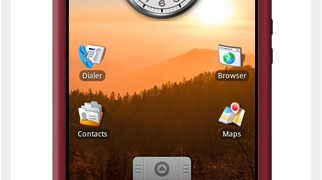
Another feature of Hangouts is its ability to let you “call” another person’s smartphone or even their landline. Calls to the U.S. and Canada are free, and international calls require Google credits unless the called party is another Hangouts user. These landline calls require a separate Hangouts Dialer app.

Make Sure you have Enough Bandwidth for Online Video Chat

Of course, video chatting using a Google Hangout takes a notable amount of Internet bandwidth, so make sure you perform a regular HTML5 speed test on your smartphone to be sure your Internet service can handle it. If your ISP isn’t keeping up their end of the bargain, by all means let them know.

Google Hangouts is definitely a 21st Century way to communicate with friends, family, and business associates. The massive popularity of Android gives Hangouts a better shot at sustained success compared to Google+ so if you wanted to try it out it appears Google Hangouts will be hanging out for quite a while.

About the Authors

Setting a Parental Lock on Android Depends on the Version

You just discovered a few hundred dollars worth of in-app purchases from a popular Android mobile video game. The likely culprit — other than the game developer — is your eight-year-old kid. How do you set a parental lock on Android? The ultimate answer depends on the version of Android on your smartphone or tablet.

256px-Android_homeAndroid Jelly Bean (4.3) Provides the Best Locking Features

Android 4.3 — code named Jelly Bean — enhanced the profiles feature introduced in the 4.2 version of the mobile OS. With these new restricted profiles, it is possible to set up a separate password-protected user account for everyone in your family. For each account, there are settings allowing you disable in-app purchases and filter apps based on their content maturity level.

It is also possible to restrict access to all the apps on the device for each separate user account. So if you download Bard’s Tale after setting up user accounts, a simple toggle switch makes the app invisible to your child. This user account functionality is available under the Android’s “Settings” section.

Older Versions Require More Work for Parental Lock on Android

Older versions of Android don’t have the same restricted profile functionality as Android Jelly Bean, so implementing parental control requires a bit more effort. The first thing you should do is go into the settings for the Google Play store and make sure your password is required for any app downloads and in-app purchases. You can also set up content filtering, but this affects the whole device. Additionally, you’ll need to disable the option that allows the installation of apps from unknown sources in the Android settings.

Other apps, such as Kid’s Place or AppLock, are useful for providing a parental lock on Android. Kid’s Place also adds a timer control, so you can limit the amount of game time your child gets on your tablet or smartphone. While Android Jelly Bean provides the best locking support, making sure your app downloads and in-app purchases are password protected — no matter which Android version you have — prevents surprises when you get your next bill!

Photo credit: Wikimedia Commons

About the Authors

Tips for Saving Battery Life on iPhone

We’ve all had that moment when we find ourselves somewhere with no power outlets to be found, and with less than 20 percent of battery life left on our iPhone. Sorry, beautiful plate of cheese fries you were planning to show off on Instagram, today is not your day. To prevent that travesty from occurring again, here are 10 tips for saving battery life on the iPhone, with an emphasis on applications in iOS 7:

iPhonebattery

10 Tips for Saving Battery Life on iPhone

  • Background App Updates
    We agree it’s awesome not having to check which apps need to be updated on your iPhone, thanks to Background App Refresh which allows the automatic updates of your apps. However, this can really take a toll on your battery life. If you prefer to turn this feature off, to disable the feature go to Settings > General > Background App Refresh and turn off the function or choose and pick the apps you don’t want to update automatically.
  • AirDrop
    Airdrop allows you to beam/send files to other iOS devices. You don’t need to have this feature on all the time. In order to save your precious battery life, you can turn off this feature by going to the Control Center and selecting the option to Disable AirDrop.
  • Lower Screen Brightness
    No matter what iOS device you’ve had, screen brightness is a battery killer. If your iPhone’s screen is so bright, you gotta wear shades, consider taking it down a few notches. Go to Settings > Wallpapers and Brightness, then disable Auto-Brightness. You can then lower decrease the brightness of your screen manually.
  • WiFi Search
    If you don’t need to be on the constant search for a WiFi connection, turning off the WiFi Search function will save some battery life. Go to the Control Center and toggle off the WiFi button.
  • Location Services
    Perhaps you find there is no need to have location settings enabled for all your apps. In that case, you can turn them off by going to Settings > Privacy > Location Services and toggling off the apps you don’t need connected to your phone’s GPS.
  • Spotlight
    This internal search function can come in handy, but it can also put in a serious dent in your battery life while it’s indexing the contents of your iPhone. Go to Settings > Spotlight Search and take a look at any items you don’t use and remove them from Spotlight’s search.
  • Parallax
    You like animations? You like the new dizzying features of iOS 7 like moving wallpapers and such? If not, then you can save your battery life by turning off Apple’s Parrallax feature. Go to Settings > General > Accessibility and select Reduce Motion to On.
  • Email Notifications — So Fetch
    Make “fetch” happen and disable the Push option on your emails! Push email downloads emails when they arrive, meaning your iPhone is constantly checking for new email and using up your battery. If you aren’t in a rush to get new emails the moment they arrive, you can schedule when to check for new email. Go to Settings > Mail, Contacts, Calendar and go to Fetch New Data. Disable the Push option. Then set the Fetch Schedule to every 15 minutes.
  • Push Notifications for Apps
    You don’t really need a push notification for all your apps, do you? Give your battery a rest by turning off some of your notifications. Go to Settings > Notification Center and scroll down to the Include section, and turn off some of those pesky notifications.
  • Siri’s Raise to Speak
    The Raise to Speak function does exactly that, allows you to raise your iPhone to speak into it and talk to Siri. This also takes up some battery power, so you can disable this feature by going to Settings > General > Siri > Raise to Speak and toggling the feature off.

Follow these tips for saving battery life on the iPhone, and you won’t be caught with a dying battery when you need it most!

Photo credit: Flickr

About the Authors