Satellite Internet or 4G: What Offers the Fastest Service?

Deciding between satellite Internet service and a 4G wireless connection depends on a variety of factors. While it can sometimes offer speeds that rival those of cable or 4G services, satellite broadband comes with other limitations. In most cases, your bandwidth will be throttled during peak usage times, which are normally during the day.

Bigpond_internet_Satellite

Let’s take a look at whether Internet service delivered via satellite makes sense for you.

Satellite Service May Be the Only Option in Some Rural Regions

In certain rural areas, satellite service may be your only option for broadband-level Internet. While 4G coverage is expanding, especially on the Verizon Wireless network, you may find 4G service to be spotty in your locale. Satellite Internet providers know they essentially have a captive audience when it comes to providing broadband access in rural regions.

The fastest satellite providers are able to reach speeds of close to 15 Mbps, although expect something in the range of 5 to 8 Mbps to be a typical speed. A standard 4G network speed falls somewhere between 15 and 20 Mbps, depending on the carrier and the current network traffic level. So, 4G service is generally faster than satellite, provided that coverage is available in your area.

Watch Out for Limited Bandwidth!

The bandwidth limitations of a satellite Internet service can be very frustrating. Most providers have a daytime bandwidth limit in the range of 10 to 20 GB of data per month, which definitely puts a hamper on the amount of video streaming you can do. Nighttime bandwidth limits also exist but are generally larger than their daytime equivalents.

If 4G service isn’t available in your area and you’d like something faster than dial-up speed, satellite Internet may be your only option. However, a combination of trees blocking your satellite view and a lack of 4G coverage in your area may limit your Internet options until 4G service becomes more ubiquitous in rural areas. In that situation, be sure to research the coverage areas of the different wireless carriers before choosing an Internet service provider.

Ultimately, 4G generally offers faster speeds than satellite Internet but may not be available everywhere, and the bandwidth limitations of the latter definitely put a crimp in your Internet experience. Carefully research all of the options available in your region before making your decision.

Photo credit: Wikimedia Commons

About the Authors

What is the Difference between Mbps and MBps?

When shopping for Internet services, buying a router, or measuring your Internet speeds, chances are you’ve seen the term “Mbps” in commercials and packaging. But what is Mbps? For those unfamiliar with the term, it stands for “megabits per second,” and, as the name implies, the metric is the industry standard for determining network performance.

You may also see a deceivingly similar acronym while on the hunt for the right router or service: MBps. The capital B in that term stands for bytes, which are different from bits. Both Mbps and MBps are measures of information on the network, but they’re usually used in disparate contexts. Here’s a quick definition before we explain in more detail:

●     Mbps stands for megabits per second.

●     MBps stands for megabytes per second.

It’s important to note that megabits are very different from megabytes. A megabit is equal to 0.125 megabytes—which means that when an internet service provider advertises speeds of 15 Mbps, your download speeds will be 1.875 megabytes per second.

Sound a little confusing? Read through this article for a complete explanation of the difference between Mbps and MBps, as well as helpful information on download speeds and network performance. If you know what you’re looking for, you can also click or tap one of the links below to head straight to that section.

Mbps vs MBps

As noted in the definition above, the difference between Mbps and MBps is that the former is a measure of megabits per second, and the latter is a measure of megabytes per second. But why do these two measures even exist in the first place? It has to do with the history of computing and the ways that data has been transferred and stored.

Let’s look at the meaning of each term in more detail and discover how they matter for your internet speeds and user experience.

Mbps meaning

Internet speeds are most commonly measured in Mbps (megabits per second). A bit is a way to measure data; when downloading a funny image, for instance, you may use a few dozen megabits. If you see an internet service or router touting its “download speeds” as, let’s say, 25 Mbps, what they’re telling you is that that is how quickly you’ll be able to load web pages, stream video, or download documents using their service or device.

What does MBps stand for?

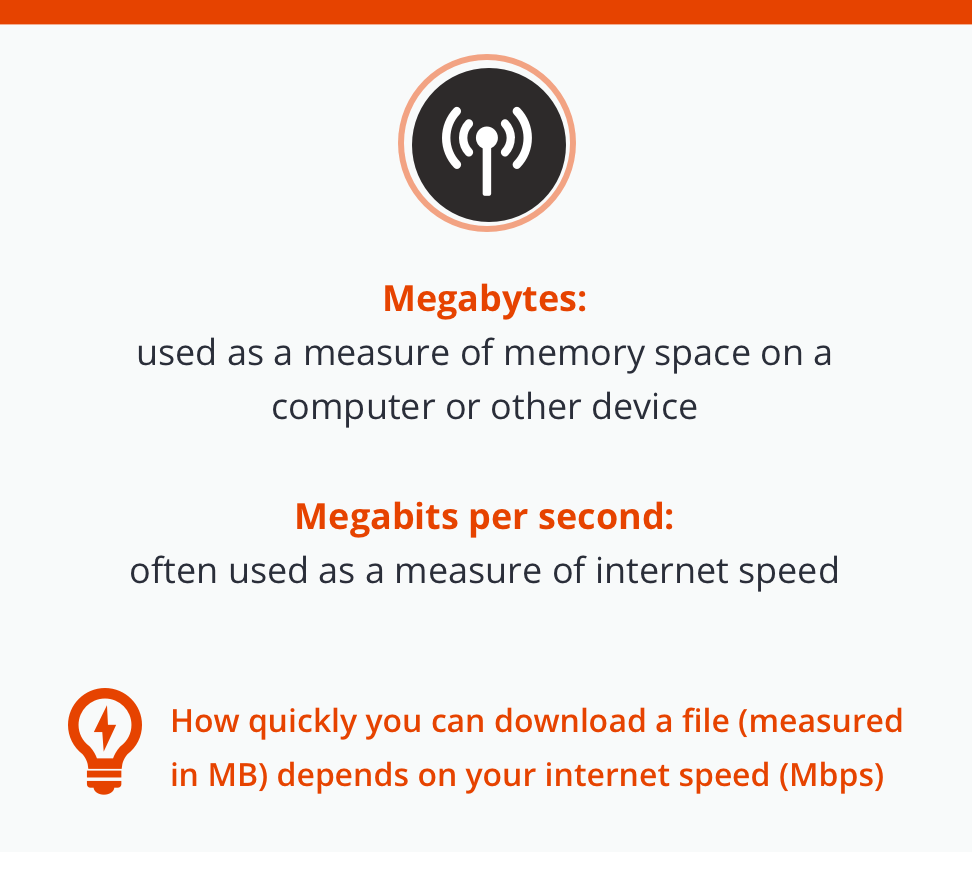
MBps stands for Megabytes per second. The term MBps is most commonly shortened to the familiar MB, or megabyte. Bytes are the name for the units of memory that computers possess, and a Megabyte is about a million bytes. There’s a handy chart below to explain the different unit sizes.

Technically speaking, you could measure your internet speed in MBps instead of Mbps. However, Mbps is the most common option among most brands. That means it’s important not to be deceived: if you see a brand offering “1 gig” internet speeds, they’re not actually offering a GB (gigabyte) of speed per second. More likely, they’re selling 1 gigabit per second speeds — which is about 1/10th of what a gigabyte per second would be.
The history of the terms

The term “bit” comes from a shortened version of “binary digit,” which is the format in which computer data is stored. While “Mbps” is a relatively abstract term for most computer users, the reason bits are used instead of bytes to measure internet speed is that historically, data has always been measured in bits as it travels over wires.

Even in the pre-internet days, the bit was the industry standard for speed metrics, and that term has continued to be used to this day. On the other hand, hard drives have always had their storage measured in bytes of data. This history is the likely reason why internet speeds are measured in Mbps, even if most devices’ memories are measured in Megabytes. History lesson aside, you’re probably curious to know how all of this applies to you.

How do I know what internet speeds are fast enough for my usage?

When you’re on the market looking for the right internet provider for your needs, the primary unit you’ll be looking at is Mbps. That’s because, as an industry standard, most services measure the speed of their internet in Mbps.

If you’re looking at an ad for an internet service boasting 50 Mbps, you may not have a clear idea of whether or not that’s fast enough to handle your online demands. Use the chart below to gain more informed insight into what each tier of internet speed will afford you:

Speed

Usage

5 – 20 Mbps Light web browsing, email and instant messaging, music streaming, and light video streaming.
20 – 50 Web browsing, HD video streaming, file downloads, video calls, and light gaming.
50 – 100 4K HD content streaming, HD multiplayer video gaming, and rapid file downloads.
100 – 200 Streaming 4K video or multiplayer gaming across multiple devices, higher-speed downloads.
200 – 1000+ Multiple devices streaming HD content, gaming, or downloading large files. Suitable for small business.

Most average internet users with households between one and five people will find internet speeds between 50 and 150 Mbps just about enough to do everything they want. If everyone you live with is a gamer who streams online, or you live with a group of professionals who all happen to work in video production, then it may be smart to consider opting for the higher ranges of internet speed.

If you run a small business, especially one that calls for several people using the same connection at the same time, it’s likely worthwhile to consider a higher speed internet connection. Whether your business is a quaint cafe with a dozen people working online or a small IT office with a team of programmers, you’ll need speeds of above 200 mbps to guarantee a smooth, uninterrupted connection. Of course, the more internet-intensive the business, the higher the internet speed it’s wise to invest in. Companies dealing with large quantities of data, like 4K HD video editing, may want to consider speeds as fast as 1000 Mbps.

It’s also important to note that, as devices and media formats become more sophisticated, internet speeds that are considered “average” may increase. In the early days of the internet, a 5 Mbps connection would have been more than enough for most consumers and professionals. In the future, 1000 Mbps connections may become the norm, especially if up and coming technologies like virtual reality and augmented reality continue to grow in popularity. Only time will tell.

Upload vs download speed

Another distinction you may want to know more about when browsing for the right internet service plan is upload vs download speed. The difference is pretty simple. Download speed measures how quickly your device can download information—like videos, games, website content, or files—from the internet. That’s the metric you’ll most often see listed prominently when you’re shopping for an internet package.

Sometimes, however, internet providers may also advertise their service’s upload speed. Don’t let that confuse you; upload speed measures how quickly you can post or upload information from your computer to the internet. Typically, upload speeds are a bit slower than download speeds, as most users download information and content far more often than they upload it. If your hobby or profession requires that you frequently upload content online — say, you stream online multiplayer video games — you should be sure to pay attention to upload speeds when selecting an internet service plan. Fortunately, Bandwidth Place’s internet speed test also measures upload speed, as well as ping, latency, and jitter, so professionals who need to know the full capacity of their connection can get the information they rely on.

So, it seems like most internet providers measure their service’s speed in Mbps. Does that mean that MBps is something you should forget about? Not exactly.

When should I care about MBps?

As we said above, MBps is usually used as a measure of space on a hard drive. You’ve probably seen computers advertised as having a 500 GB hard drive. That refers to the total amount of space on the device, measured in gigabytes, not bits.

The average HD movie is about 1GB, so if you bought a computer with 500 GB, you could download 500 HD movies onto it before receiving a “Storage Full” notification.

If you’re curious about how the different units of measures relate to each other, take a look at this table:

Unit Equivalent
1 kilobyte (KB) 1,024 bytes
1 megabyte (MB) 1,048,576 bytes
1 gigabyte (GB) 1,073,741,824 bytes
1 terabyte (TB) 1,099,511,627,776 bytes
1 petabyte (PB) 1,125,899,906,842,624 bytes

Most home computers and other devices have a hard drive with around 256 to 500 gigabytes, and max out in the 1-2 terabyte range. If you run a medium-sized business that deals with plenty of large files, you may be interested in larger models.

How do Mbps and MBps relate?

When you download a file from the internet (either to your hard drive or to your cache by visiting a website), that file has a size. The size of the file can be measured in MB. Smaller files might be fractions of an MB, called a kilobyte (KB), and thousands of MB can be measured in gigabytes (GB).

Your internet provider’s Mbps will determine how quickly you can download files of different sizes. If your speed tops out at 5 mbps, you might have a hard time downloading a 10GB file. It could take quite a long time. However, if you’ve got 1000 Mbps internet service, that 10GB file might only take a minute or less.

That means that, if you were interested, you could actually measure your download speed in MBps or even GBps: gigabytes per second. While most providers measure downloads in Mbps, bits and bytes are just two separate measures of data per second.

The Importance of a responsive internet speed test

When measuring your internet speeds, it’s smart to make sure you’re using a responsive internet speed test, because it ensures you have uniform test results across devices, regardless of whether you are on a mobile or desktop device. By measuring your internet speeds this way, you can determine if your internet provider is delivering the speeds you’re paying for.

Another use of speed tests is to ensure your network can handle streaming content from services such as Hulu Plus or Netflix. Even with a high-speed internet connection, you can experience performance issues from having too many devices on your network. Gamers playing in online multiplayer arenas, professionals uploading and downloading sensitive work documents to their company’s cloud, and anyone who relies on fast internet speeds should all be sure to regularly use an internet speed test to ensure their network is performing to capacity.

If you’re not sure whether you’re getting your money’s worth or whether you need to upgrade your internet service—or if you simply want to test your internet speeds—follow these steps:

  • Find all of the internet-connected devices in your home. Laptops, desktop computers, tablets, phones, smart speakers, and gaming consoles are the most common.
  • Navigate to the Bandwidth Place internet speed test on each device.
  • Input your nearest server location or select “fastest server” and press “Start.”
  • Within 30 seconds, you’ll receive a real-time report on your download, upload, and ping
  • Check your internet service plan to ensure that the speed reading given by our test tool matches closely to their advertised claims.
  • You can also use our speed test comparison page to find out more about what your results may mean.

Note: Our speed test results are given in Mbps, or megabits per second.

If only one of your devices has a lower speed than expected, there may be a problem with that individual device’s internet capabilities. However, if many of your devices are unable to connect at the full speed you pay for, there may be an issue with your router, modem, or service provider. It may be worth calling your provider to find out how you can troubleshoot your devices before a repair technician has to be called.

Key takeaways

When on the hunt for the right internet provider, testing your internet speed, or looking for the right computer or other device, it’s important to know what Mbps is, as well as the difference between Mbps and MBps. Here are some key takeaways to remember:

  • Mbps means megabits per second, and is usually used as a way to measure internet download and upload speeds.
  • MBps means megabytes per second, and although it technically is another way one could measure internet speeds, it is much more uncommon. Megabytes (MB) are commonly used to measure storage capacity on devices.
  • For a typical household, between 50 and 150 Mbps should be enough to handle common internet activities like streaming movies and videos, multiplayer online gaming, video chatting, and downloading files.
  • Having a reliable and responsive internet connection is important for any household. You can use Bandwidth Place’s internet speed test to learn more about your internet download, upload, and ping speeds.


About the Authors

Use a Speed Test to Optimize Netflix Streaming Bandwidth

Breaking Bad, The Act of Killing, Sherlock, Skyfall, and every other amazing movie, TV show, and documentary on Netflix means nothing if your Netflix streaming bandwidth is poor.

netflix-streaming-bandwidth

If you are streaming with a Chromecast, PS3, Apple TV, or your trusty laptop, subpar bandwidth will quickly ruin your movie night. So before you get hooked up, test your Internet speed and learn the bandwidth requirements for Netflix streaming.

What Is an Internet Speed Test?

An Internet speed test allows you to check your bandwidth on any device. It incorporates HTML5 technology, so you don’t have to update your browser, download a separate mobile app, or install Flash. Also, because the speed test uses the latest in responsive design, it will fit any monitor, tablet, or mobile screen out there.

What Is the Most Optimal Netflix Streaming Bandwidth?

According to Netflix, the Internet speed you’ll need for downloads is as follows:

  • For any streaming at all, you’ll need a minimum of 0.5 megabits per second (Mbps), but Netflix recommends 1.5 Mbps.
  • For DVD quality, you will need 3.0 Mbps.
  • For HD quality, you will need 5.0 Mbps.
  • For Super HD and 3D (really!) quality, you’ll need around 7.0-12.0 Mbps.

You should probably look into getting at least 10 Mbps download speeds or higher at your home if you want to video stream. Even better is 20 Mbps or higher, but then you’re adding more cost to your monthly bill. Getting in between 10 Mbps and 20 Mbps is probably ideal.

So What Do I Do?

Now that you know what the required speeds are, check your Internet speed and compare. Remember, you can check your bandwidth with your desktop, laptop, tablet, or smartphone.

1. Go to Bandwidthplace.com.

2. Click “START” on the speed dial.

3. Your results will be displayed. This includes your download speed, upload speed, ping, IP address, and your internet service provider (ISP).

Happy streaming!

Photo credit: Twin Design / Shutterstock.com

About the Authors

Test Your Internet Speed for the Best Xbox One Experience

Microsoft’s new Xbox One video game system goes beyond the typical disk-based console gaming experience. A fast Internet service is the best way to get the most out of the new Xbox, which offers online gameplay, video streaming, and a host of other compelling content in addition to regular video game action.

test-your-internet-speed

If your broadband service seems occasionally slow, it is probably a good idea to give it a regular checkup to ensure you’re getting the speed you pay for before getting into the Xbox One. Thankfully, it is an easy process to test your Internet speed using a industry-leading website with a state-of-the-art HTML5 test. An HTML5 speed test will load faster and work on a larger number of devices compared to older Flash-based testing.

How to Test your Internet Speed

First off, navigate to the test website in your web browser. Before running the test, you can choose a server location or let the site pick the default. If you decide to choose your own server, be sure to pick the closest one to your current location.

After clicking on the “Start” button to begin the test, a quick server “ping” happens followed by the download of a small file. Note your current download speed on the speedometer. After the download finishes, the test then performs a quick file upload and records the test result — expect your upload speed to be significantly slower than your download speed.

After the test finishes, make it a point to save your results, either by taking a screen shot or by writing down the values in a spreadsheet or text file. Having a historical record of your test results helps if you ever need to get a credit from your Internet provider when their service isn’t up to par.

Once you verify your bandwidth is as expected, turn on your Xbox One and get into some online gaming or even watch a movie. It is easy to test your Internet speed, so make sure to do it regularly!

Photo credit: Barone Firenze / Shutterstock.com

About the Authors

Faster Internet Speeds: Who Comes Out on Top?

Internet speed is king. While some users prefer ADSL to cable, or wireless to wired, there’s a universal truth: Faster is always better. Telecom companies across the nation compete for top spot in this race, all claiming they have faster Internet speeds than anyone else on the market. But who really comes out on top?

faster-internet-speeds

A Bit of Background

It’s worth knowing a few basic differences between Internet connections before you start shopping. Asymmetric digital subscriber line (ADSL) connections rely on the same copper wiring used in phone lines and connect to the same jack. Typical download speeds for an ADSL connection hover around 7 megabits per second (Mbps). Cable Internet, meanwhile, uses the same coaxial cable as your television. Cable is usually faster than ADSL, between 3 and 10 Mbps on average, but is less secure, since all connections in a neighborhood run through the same lines. The variance in download speeds is also a result of multiple users on the same lines — at peak times, your portion of the Internet pipeline “narrows,” causing downloads to slow.

Fiber-optic cable is the newest advancement in wired Internet. Inside any fiber-optic cable is glass, used to transmit information through pulses of light. Glass does not conduct electricity like copper wire or coaxial cable; as a result, fiber-optic connections are almost immune to problems caused by poor weather. In addition, fiber supports much higher downloads speeds of 100 Mbps or better.

Who’s the Fastest?

According to a recent PCMag article, which collected data on national Internet service providers (ISPs) in 2013, there’s currently a clear winner in the United States when it comes to faster Internet speeds: Verizon. The company’s line of FiOS plans offer download and upload speeds far above its competitors — on average, FiOS users enjoyed downloads at 34.5 Mbps and uploads at just over 20 Mbps. If you really need speed, try Verizon’s FiOS Quantum, which offers a blazing 500 Mbps of download speed. There is a problem with Verizon, however: location. The company only supplies FiOS to a select number of locations in seaboard states, meaning those in the Midwest or northern parts of the country need to find an alternative.

Also worth noting for fast Internet speed in 2013 are Midcontintent (Midco) which services the north-central region of the US. Midco was second only to Verizon with its average download speed of just over 33 Mbps, but came in with a much lower 6.4 Mpbs upload. Nationwide provider Comcast came in third with 27.2 Mbps download speed and 6.8 Mpbs upload. Time Warner, meanwhile, ranked 10th with 19 Mbps download and 2.3 Mbps upload, respectively. Worth a mention is Cox — while the company’s download speed of 22.6 Mbps earned it a middle spot on the list, its uploads at 8.7 Mbps were second only to Verizon.

Every company on the list improved its speed results over 2012, and the influx of fiber-optic cables in many urban areas should prompt a further speed boost in coming years. For now, however, Verizon wins the war of faster Internet speeds (remember: a free online speed test can help you determine if your Internet is running up to speed).

About the Authors

Internet Speed for Facebook Chat: What’s Ideal?

Facebook has become the go-to social platform used by young and old alike to stay in touch with family and friends. It now boasts over a billion users worldwide. Recently, the social media giant introduced video chat for users, accessible directly from users’ Facebook accounts without the need to download additional software. For some, however, the experience has been less than optimal, leading to the question: What’s the ideal Internet speed for Facebook chat?

internet-speed-for-facebook-chat

Video Chat Basics

There are two types of chat functions available for Facebook users: text and video. When you use Facebook, a small notification window typically appears at the bottom right of your screen, letting you know who’s online and available for text chat. Clicking on the window lets you select a friend and send a message. If you find this chat is lagging, you may have a problem with your Internet connection, or your router’s firewall may be blocking access to Facebook. If you’re on a wireless connection, check to make sure you have service; if you’re on a 3G or 4G network, make sure you aren’t out of data.

To access video chat, simply click on the small video camera icon next to your friend’s name. This will start a video call she can accept, even if she doesn’t have a video camera. In that case, you’ll be able to hear but not see your friend, though she’ll still see you if your camera is enabled. Facebook doesn’t charge for this service, but it does note on its support page that there are several caveats when using video chat. First, minimal setup is required, so if you’re calling a friend who’s never used the feature before, it may take a few moments to connect. In addition, not every computer is able to run Facebook video calling. If you’re running Windows 8.1, OS X 10.9 or Linux, Facebook video isn’t available. Fortunately, the service works with most popular Web browsers including Google Chrome, Mozilla Firefox, and Internet Explorer (32 bit only).

Up to Speed

According to Facebook’s video calling Bugs and Known Issues page, some users experience difficulty connecting if their computer or connection is too slow. Facebook recommends an Intel Core 2Ghz or faster processor and at least 1 gigabyte (GB) of RAM. Netbooks are not recommended, as they often experience poor video performance. A slow Internet connection can be responsible for video chat problems. Download speed of at least 500 kilobytes per second (kbps) is recommended — this is the same as what Skype recommends for one-on-one video calling, and Facebook video chat uses a variant of Skype traffic. It’s worth noting that a similarly fast upload speed is also recommended, since you’re not just receiving video data during a chat but also sending the same amount of data in return. If you have high download but poor upload speed, your friend may have difficulty hearing or seeing your side of the chat. A free online speed test can help you determine if your Internet is running up to speed.

The best Internet speed for Facebook chat is the fastest you can manage under your budget — aim for at least 3 Mpbs download and 1 Mpbs upload. While basic requirements to use the service are minimal, you’ll experience quicker connections and higher quality calls with speedy Internet connections.

Photo credit: Wikimedia Commons

About the Authors

Which Xbox Live Games Need the Best Internet Speed?

If you’re a fan of Xbox Live games, you know Internet lag is more deadly than any danger you’ll find in-game. Whether testing your mettle against other players or exploring an online world alone, slow Internet speeds can play havoc with the games — and some more than others. Which titles need the best Internet speeds?

xbox-live-games copy

Call of Duty: Ghosts

The latest game in this popular series, Call of Duty: Ghosts takes players into a near-future world where the United States has been decimated by sabotage of its orbital weapons technology. As the once-prosperous First World struggles to survive, South American countries under the watchful eye of The Federation enjoy a period of economic prosperity. Players are tasked with defending a shattered America from losing the little it has left. In addition to a unique single-player campaign, Ghosts also features the fast-paced multiplayer combat that Call of Duty fans expect. Not only can players customize their own soldier, but they can create entire squads to help turn the tide of battle.

As a result, it’s critical to have a stable, speedy Internet connection for any Ghosts multiplayer action on Xbox Live. One second of lag can mean the difference between capturing an objective or losing the game, and if user commands aren’t immediately converted into onscreen action, there’s no way to viably compete against skilled opponents.

Assassin’s Creed IV: Black Flag

Set in the eighteenth century, Assassin’s Creed IV: Black Flag takes players back to a time of pirates, swordplay, and mayhem. Sifting through the memories of the long-dead Edward Kenway, players are ostensibly helping to gather data for an interactive film but are, in fact, unknowing participants in a massive Templar plot to uncover ancient technology. The multiplayer aspect of Assassin’s Creed IV has received high praise from fans who enjoy the mix of action and stealth, but many users have reported significant lag during multiplayer matches. If a lag spike occurs at just the wrong moment, the blade intended for an unsuspecting target might miss, or players could be exposed to the watchful eyes of other gamers hiding the shadows.

Xbox Recommends

According to the official Xbox Live support page, a player who experiences lag during an Xbox Live game should first check his own Internet connection. Microsoft lists the minimum requirements for online gaming as a three megabit-per-second (Mbps) download speed and 0.5 Mbps upload speed, along with a “ping” of 150 milliseconds or less. Ping is the amount of time it takes for your Xbox and the game server to communicate. The lower this number, the faster your character will respond to commands. Anything under 50 is an excellent ping. If your speed is fine, make sure you’re using a wired connection, since wireless connectivity has much greater variability, and also check your router’s firewall settings to make sure Xbox Live isn’t being accidentally blocked as a security risk.

If your speed is too slow, consider upgrading your connection or changing providers. Many providers offer packages with download speeds higher than 10 Mbps, and some fiber-optic connections yield download rates closer to 50 or even 100 Mbps. While player skill remains the most important factor in dominating either of the multiplayer Xbox Live games mentioned above, a speedy connection doesn’t hurt, either (remember: by performing a speed test, you can ensure that you are always connecting to the best performing networks).

Photo credit: Wikimedia Commons

About the Authors

What is the Ideal Internet Speed for Streaming Content?

As Internet speed has vastly improved over the years, the demand for streaming services such as Apple TV, Google Chromecast, the Rose, and Netflix has driven many Internet users to push the limits of their Internet connections. In order to get the best speeds possible out of your Internet service provider, using an 802.11n router is vital to ensuring your devices are getting the bandwidth they need. Netflix requires a minimum speed of 0.5 Mbps to stream content; however, they recommend that your speed is at least 1.5 Mbps. If you want higher image quality from the content you stream, you’ll need even faster speeds: 3.0 Mbps for DVD-quality video, 5.0 Mbps for HD video, and 12 Mbps for 3D video.

internet-speed

When to Avoid Streaming

Although high-speed Internet connections are the norm today, there are cases when you shouldn’t be pushing your bandwidth to the limit. Namely, as a rule of thumb, if you do not have unlimited data on your cellular plan, you will want to avoid Internet streaming on your mobile device to avoid overages. Even if you have unlimited cellular data, it usually is best to limit streaming to WiFi connections because they are usually more reliable than connecting via cellular connections.

Additionally, if you travel regularly, many public hotspots in airports, airplanes, and other high-traffic areas aren’t built to handle bandwidth-intensive activities such as multimedia streaming. Fortunately, if a provider charges extra for extra speed, they will typically make the pricing clear on the payment page.

How to Determine Your Internet Speed

While bandwidth measurement is a technical topic, you can easily measure your Internet speed with only a few clicks by using an Internet speed test. In particular, you will want to use a responsive tool because this means the test is run in your browser. This allows you to ensure that no matter the device you use, the metrics are uniform. If you find that your Internet connection is significantly slower than the speeds advertised by your Internet service provider, it is best to contact the company so they can run the appropriate troubleshooting tests.

About the Authors

Perform a Speed Test Before Using Your Chromecast

Google’s new robust streaming device, the Chromecast, is both wonderful and inexpensive, but before you connect to your TV, make sure you perform a speed test on your device. Once you know your speed is up to par, you’re only a few simple steps away from enjoying your new Chromecast.

Chromecast_dongle.png

What Is a Google Chromecast?

Chromecast is a dongle (a small piece of hardware that attaches to your device) that plugs into your TV’s HDMI port and is powered by a USB cable. By using your smartphone (or laptop) you can use Chromecast to stream content from the Internet: Netflix, Youtube, Hulu Plus, HBO Go, and the Google Play store (and more). Chromecast is simply just a transmitter between your TV and your streaming service via your device (smartphone, tablet, or laptop).

How Do I Set Up Chromecast?

  1. You need to make sure you have home WiFi. If you don’t, you’re out of luck.
  2. You need to analyze your home bandwidth. Perform a speed test on your smartphone, tablet, or laptop (the test incorporates HTML5 technology, so it will run on any device and browser, without a separate application to download). Your WiFi should be nice and robust in the vicinity of your TV. Use the speed test as well to test how strong your WiFi signal is (a weak signal means weak streaming).
  3. Follow the directions on the box: plug it in (you will need a free HDMI port, and remember that you need to either plug the power via USB or use the power adapter included in the box).
  4. Switch your input until you see “set me up” on your TV
  5. Set up the Chomecast by going to google.com/chromecast/setup (we recommend that you use the device that you plan to use as your remote as the set up device, either your smartphone, tablet, or laptop, and don’t worry, once you’re up and running you can connect as many devices as you feel).
  6. Download the Chromecast app or utility (remember: you will probably need a firmware update out of the box; things might stop working while the Chromecast updates, but afterwards it should work perfectly).
  7. Connect to your WiFi network via inputting your password (you better know your password by now!).
  8. Once the Chromcast is connected, it should say “ready to cast.”

You are ready to stream. Go to Netflix or YouTube, and you will see a logo for streaming. Activate it, and what’s streaming on your smartphone, tablet, or laptop should now be streaming on your TV. Happy Streaming!

Photo credit: Wikimedia Commons

About the Authors

Game Lag? Check Your Speed or Wreck Your Lead

Topping the charts in online console gaming takes dedication, focus, skill — and a great connection. Even the best players can get tripped up by game lag and find themselves precious seconds behind the competition: whether it’s a first-person shooter (FPS), real-time strategy (RTS), or endgame MMO content, lag is a killer. So how do you stay ahead of the pack? Start by checking your connection.

game-lag

Good Advice

Console game developer Activision offers several pieces of advice when it comes to maximizing network performance. First, make sure you’re using a wired rather than wireless connection. While WiFi networks are great for light video streaming or a quick gaming session, their inherent variability makes them a less-than-optimal choice for blazing fast performance. In addition, make sure you’re not running bandwidth-heavy applications alongside a game; using a PC to stream HD video while you try to achieve multiplayer victory can slow your ascent to a crawl.

You can also go deeper and modify router settings as needed. For example, make sure Universal Plug and Play (UPnP) is turned on. This allows devices on your home network to intelligently discover each other and helps correctly route data to your console. If this isn’t successful, find your gaming console in router settings and use “port forwarding” to assign the correct UDP ports. Popular FPS game Call of Duty, for example, uses port 3074. Forwarding traffic from this port directly to your console can help decrease lag.

Faster, Faster

If the tips above don’t lower your game lag, the speed of your connection may be to blame. Start with a speed test from a free online service. These tests give you a ballpark idea of your “ping,” which is the time it takes to communicate with your Internet service provider’s (ISP’s) web server. Ping is measured in milliseconds: the lower the number, the better.

For console gaming, you want a ping under 100, ideally under 50 and — if you can manage it — under 25 milliseconds. Too high a ping means a large delay between what you do and when that action is registered by the game server, putting you out of the running for top spot. Speed tests will also give an average download speed in megabits per second (Mbps). Some companies now offer speeds up to 50 or even 100 Mbps, but you can usually get away with speeds between 5 and 10 Mbps as long as the game server isn’t trying to push through large files while you’re playing. If you’re downloading movies or other games while playing, however, you may max out the bandwidth of your connection and experience lag.

Bottom line: If you’ve got high ping and low bandwidth, you may need to upgrade your Internet connection. A bigger “pipe” to your ISP’s web server means less time between when you press a button and when the results are displayed on screen, and a better chance that you’ll top the leader boards.

About the Authors