HBO GO Streaming: The Best Video App Available

HBO GO streaming over an iPad with headphones is an amazing experience — especially if you’re in bed. But there’s more to HBO GO than just “bed streaming.” It’s an amazing app. If you don’t have it, and you have a HBO subscription, you need to download it right now.

hbo-go1

The HBO GO app is not only available for iPhone, iPad, or Android; it’s also available for Apple TV, Kindle Fire, Roku, Samsung TVs, and the XBox 360 gaming console. It’s available for desktops and laptops, too. HBO GO lets you stream all the HBO shows, movies, and sports, with extra features, free of charge, because it is included with your HBO subscription through your television provider. If you have cable, fiber, or satellite TV through Comcast, AT&T, or Dish (to name a few), you’re in luck. Go to your computer, mobile device, or streaming player, and start using HBO GO right away. It’s amazing!

Getting Started

After signing in with your username and password that’s associated with your individual television provider account, you will instantly notice how cool the HBO GO streaming app is.

A collage of rectangle-like windows, each with a different movie or show, will come alive (the windows cycle slowly, and sometimes they actually play). The navigation is in the footer (below): Home, Movies, Series, Comedy, Sports, Documentaries, and Late Night. Each program has interactive features with exclusive content tied to each episode, personalized watch lists, series passes which automatically send new episodes of your favorite shows to your watch lists, parental controls to keep HBO GO family-friendly, and Facebook/Twitter links to alert your friends what you’re watching.

Activate and Use

Click on a window to activate that window. Say you pick Game of Thrones. A tab will let you browse the entire series. On the right, a tab with seasons; pick the one you want to watch. Below, the episodes are listed in numerical order.

Click an episode. After it loads, you can start at any time. During the episode, you’ll see extra features below; if you decide to click on any of them, the episode will pause.

View Extra Features

Say you want to see a map of the lands of Game of Thrones. There’s a fantastic map with King’s Landing, Dragonstone, Casterly Rock, and more. Want more? Click on a town, and a description appears. This is very helpful (specifically) for this show, because sometimes — unless you’ve read the books by George R.R. Martin — characters talk about towns and locations that have not yet been introduced.

Click on a guide to the houses. You’ll see a useful diagram with the claimants to the Throne and their flags. Click on a house, and a family tree appears with a list of characters from the show.

HBO GO is simply amazing and makes a wonderful guide to shows, with character breakdowns and more. If you have an HBO subscription at home, what are you waiting for? This is the best video-streaming app available today.

About the Authors

Writing Online: Best Tools for Writing, Blogging, and Microblogging

Writing online is commonplace today. Updating social media sites, blogging, or just emailing is something nearly everyone does. The seemingly limitless Internet has plenty of tools that can help those who want to take their writing to a new level. These tools can help users write documents, create blogs, or just express an idea to the world.

Blog

Writing Tools

Writing tools come in a variety of flavors. Here are a few of the top resources:

  • Google Docs: Probably the most famous of online word processors, Google Docs allows users to quickly create, edit, and share documents that are accessible anywhere there is an Internet connection.
  • Anti-Social: This tool helps the writer stay focused and write. Anti-Social is a program that allows its users to stop social media sites from interfering during writing time. This program is a browser plugin; when activated, media sites such as Facebook and Twitter will not be accessible to the user.
  • Grammarly: This site boasts it can correct up to 10 times more mistakes than your word processor. It also has a plagiarism checker that compares the entered text with over 8 billion pages over the Internet.

Blogging

Blogging started as a fun way for people to create a place on the web where they could show off pictures of the family or talk about their favorite hobbies. Now, it is a way for companies, famous cooks, freelance journalists, or anyone else to create a site that can generate an income.

  • WordPress: The number one blog-creation tool, WordPress is not as easy as some other site-creation services, but it offers more flexibility and allows the developers to code their sites for a unique experience.
  • TrapIt: This tool allows bloggers to trap topics from the web. It searches the web automatically and sends data back to the blogger from other blogs and sites.
  • Diigo: Diigo allows the blogger to store bits of information for later use. Other features include the ability to embed notes to the stored data. This tool supports mobile devices.

Microblogging

Most people have microblogged without even realizing it. Twitter and Facebook are essentially microblogging sites. A microblog is a place where the user can create small posts to share to the community.

  • FriendFeed: So, you have found that Twitter and Facebook are not enough for you. Now there is FriendFeed. FriendFeed can link to both Twitter and Facebook, and it has its own social network programmed in. FriendFeed is designed to give friends and families an easy way to connect in real time. But wasn’t that what Facebook and Twitter started out as?
  • SproutSocial: SproutSocial is created to manage a user’s or business’s Twitter account. It helps to monitor messages, it creates group reports, and it can take a single post and submit it to Facebook, Twitter, and Google+.

Writing online through social media is here to stay. It is no longer a question of which site to log into, but how many sites and what the best way is to gather information. The Internet continues to prove that information is power. Know your tools.

About the Authors

What Takes up the Most Home Bandwidth: YouTube, Spotify, or Netflix?

Streaming media content continues to be a major reason for people to use their Internet connections. Unfortunately, this same content also takes up a lot of bandwidth. Between three of the major online streaming services — YouTube, Spotify, and Netflix — which uses up the most home bandwidth?

Daniel_Ek_addressing_Spotify_staff

Streaming Music: Much Less Bandwidth Than Video

Those of you who prefer to stream music from Spotify instead of streaming video are using a much smaller amount of bandwidth compared to any video site. This also applies to streaming music off of YouTube when the “video” in question is simply a static image of a band’s album cover. Although bandwidth rates vary widely depending on the media format and quality, a good rule of thumb is to expect video streaming to require anywhere from 10 to 20 times the bandwidth as audio. The difference is even greater if the video is in HD format.

Spotify itself offers its audio streams in the Vorbis format, and premium subscribers are able to switch to a higher fidelity stream. The normal format is around 160 kbits per second, while the premium stream doubles the resolution to around 320 kbits per second.

Bandwidth Differences Between Netflix and YouTube

In general, YouTube gives its users a wider array of options in video-streaming quality when compared to Netflix. YouTube videos are streamed in resolutions from 240p all the way to full HD: 1080p. You as the user control the resolution of the video and how much bandwidth you are using.

Netflix also provides some measure of video-quality choice for their users, but it recommends that subscribers’ Internet connections are at least 1.5 megabits per second, with 3.0 megabits per second recommended for DVD quality. Obviously, HD quality requires even more bandwidth.

Summing Up

Either YouTube or Netflix can take up more bandwidth than the other, depending on your choice for video-streaming quality. Considering that Netflix has a wider selection of commercial movies in HD format, Netflix takes up the most monthly bandwidth for more users. Both video-streaming services take up much more bandwidth than Spotify or any other music-streaming service. Thankfully, users still hold a lot of control over their own bandwidth usage.

About the Authors

Home Internet Service Providers: What to Look For in an ISP

There are many home Internet service providers, or ISPs, and finding the right one can actually take a little work. Most people take the easy route and grab the least expensive they can find or just go with whomever the local carrier is.

Is that the right decision? It depends on your needs as the consumer, but you may not always know what you’re really getting.

Cox-Cable-Speed-Test

Bundles or Package Deals

Bundles are a very popular option offered by all major cable carriers. The cable companies offer to reduce the price of Internet if the consumer adds a local phone service and/or some kind of cable to their account. Many people don’t use land-line phones anymore and rely on their cell phones for day-to-day calling, but typically it’s cheaper to get the bundle than to just get cable and Internet separately.

On the other hand, if you’re a renter—and cable is already paid for—then it may be advantageous to get Internet by itself. Everyone should look into these options before jumping into a bundle deal. Also, make sure the pricing is permanent: many package deals start off with a great price, but the prices jump up after six months or a year.

When deciding if you’re going with a bundle, you also need to find out about Internet speeds. ISPs typically have speed packages available as well, which offer higher data transfer rates for those who need it for activities like frequent online gaming or streaming video. If you’re not sure what you need, then get the basic package and go to BandwidthPlace.com and take an Internet speed test. If things are running a little slow, upgrade for a month, and visit BandwidthPlace.com again to see the improvements in your connection speed.

Pricing

The Internet is not a place where “you-get-what-you-pay-for” applies. Many companies will offer to make better deals than your local carrier. Read the fine print before joining any of them. Many ISPs are renting the lines, poles and data transfer from the local carriers and they can, in the long run, cost more than the local carrier.

Free ISP companies still exist, but there’s a catch. They all offer free services, but they want to run advertisements on the computer while you’re surfing the web. These advertisements are tracked and so are your Internet browsing habits, so the ISP can show advertisements that pertain to where you surf. The free ISPs may not be the safest choice, but for those users with few other options, this may work.

Customer Care

The Internet is a great place to find out about customer care considerations of an ISP service. Make sure there is 24-hour help service and that most of the customers are satisfied with the customer care offered. In some cases, if you lose Internet, the customer care department can get you going again just by performing a simple reset on your router.

Home Internet service providers offer many options. No matter which you choose, be sure to read the fine print. Cable companies sell all your information to third-party vendors, unless you specifically tell them not to at start up. Ask if they have parental control, anti-virus, and networking options.

About the Authors

The Top Video Streaming Websites

More and more people stream video over the Internet instead of using traditional sources like cable, satellite, or over-the-air television. Make sure your web connection is working at its fastest as you take a look at the top video streaming sites on the web:

YouTube_Square.png

YouTube: Google’s Top Video Streaming Behemoth

When Google acquired the fledgling video streaming site YouTube in 2006, there was little doubt the site would become the preeminent video site on the Internet. The website definitely benefits from the traffic driven to it from Google search results. Although most of the videos are uploaded by individual users, some corporate networks, including CBS and the BBC, partner with YouTube to make their content available on the site.

From a technical standpoint, videos on YouTube are generally streamed using Flash, although HTML5 is seeing more use over time. A wide range of video resolutions are available, all the way from 320×240 to full 1080p HD. Make sure you have an excellent Internet connection if you want to stream HD from the site.

Justin.tv: The Leader in Lifecasting

Since it started in 2007 — primarily as a source for founder Justin Kan to stream live video of his life over the Internet — Justin.tv has brought “lifecasting” into the mainstream. Using the website, anyone with a decent smartphone is able to broadcast live video to users all over the world. There remains little doubt that lifecasting and social TV have changed the way people consume video content.

JTV users watch over 300 million videos on Justin.tv each month, which is more videos than those same users viewed on YouTube. The website’s user base spans over 250 countries. The video content is ad-supported, although an ad-free Pro membership can be purchased for about $10 per month.

Hulu: A Great Site for TV Programs

A joint venture between three of the top television networks — NBC, ABC/Disney, and Fox — Hulu is the place to go to watch your favorite television programs and movies. While some streaming content is available for free, a monthly subscription to Hulu Plus is a requirement if you want access to most of the available TV shows and movies.

The Hulu website uses Flash for video streaming, with available resolutions ranging from 288p all the way to 1080p HD. In addition to the website, a Hulu app is available for most smartphone and tablet platforms, as well as for video game systems like the PlayStation 3 and Xbox 360.

As long as you have a fast Internet connection, there are enough top video streaming websites out there to make you consider getting rid of your cable or satellite TV subscription.

About the Authors

How to Run a Cox Speed Test

If you’re like most people, you depend on the strength of your internet connection to keep your digital world afloat. When things start to slow down and laggy load times befall you, running a bandwidth speed test is a crucial step in figuring out what’s going wrong. Not only can these simple one-click steps tell you how quickly you’re able to download and upload files, but they can also verify whether or not you’re getting your money’s worth from your internet service provider (ISP).

As the third-largest cable entertainment and broadband provider in America, Cox Communications has earned its leading position by extending their services far beyond fast internet speeds. Among the many services Cox offers is a Cox speed test that allows you to evaluate the speed of your many devices’ connection to the internet.

Because it’s virtually impossible for any internet service provider to claim to provide impeccable reliability and coverage availability, spotty or slow internet is bound to happen. If you’ve been dealing with frustratingly slow internet or simply want some detailed insight into how your internet is working for you, conducting a Cox speed test is your one-stop-shop solution.

Using this guide, we’ll walk you through how to run a Cox speed test, help you understand your results, and answer any questions you may have about your Cox internet speed and web connection.

What is an internet speed test?

An internet speed test is an evaluation of broadband parameters. Speed tests work by sending a small file from the ISP server and analyzing the time it takes to download the file onto your local device and then upload it back to the server.

Internet speed tests report on a number of important features, including:

  • Download speed
  • Upload speed
  • Bandwidth
  • Ping
  • Jitter

Not all internet speed tests report on all of the aforementioned features, but download and upload speed and ping are standard measurements across all tests.

How to run a Cox internet speed test

Step 1: Prep your environment

Before you begin your Cox speed test, make the following adjustments to ensure your test is as precise as possible:

  • Disable any software that could slow down the test (anti-virus, multiple browser tabs, etc.)
  • Disconnect any hardware that could cause latency issues (firewalls, intrusion prevention systems, etc.)
Step 2: Access the Cox Speed Test

Here, you will simply be asked to “Start Test.” You will have the option of changing servers, but if you choose not to, the system will select the closest available server for you. The test should take no longer than 30 seconds for a full assessment. You’ll be able to watch the internet speedometer work its magic right before your eyes.

Step 3: Survey your results

Once complete, your final results will reveal your download, upload, ping, and jitter rates. To get a better understanding of what each of these measurements mean, refer to our glossary of speed test terms.

With both your upload and download speeds evaluated, cross-examine the speeds you’ve surveyed with the numbers touted within your ISP’s service plan. If there are significant discrepancies, it may be time to troubleshoot.

What is considered fast internet speed?

The Federal Communications Commission (FCC) defines fast internet as a web connection offering download speeds of at least 25 Mbps and upload speeds of at least 3 Mbps. These speeds can easily support common online activities ranging from High-Definition video streaming and online gaming to web-browsing and music downloading.

What is considered slow internet speed?

According to FCC evaluations, download speeds of less than 25 Mbps are too slow to be considered broadband, thereby objectively classifying them as slow internet speeds. Download speeds below 25 Mbps typically mean users will experience difficulty connecting multiple web-enabled devices, frequent video buffering, and a myriad of other laggy connectivity issues.

What factors can alter my Cox speed test results?

In order to yield the most accurate speed test results, it’s absolutely crucial that your environment is ideal for the test. There are a number of both external and internal factors that can alter your speed test results. These factors divide into either software or hardware discrepancies. Let’s break it down:

Software

Certain types of software programs can cause connectivity slowdowns—namely firewalls, anti-virus programs, and administrative tools, to name a few. These types of programs monitor each and every piece of input and output data transmitted to your device. And, in some cases, these applications also supply extra data to help with encryption. This can greatly alter your Cox speed test results if you don’t make a point to disable them before testing.

Your browser of choice—be it Chrome, Safari, Edge, or Firefox—may be the reason behind your poor speed test results. Each browser offers different levels of performance capacity, which ultimately plays a huge role in your device’s internet speed. If you were to conduct one Cox speed test through Chrome and another through Safari, you may see different results. We recommend running the test through your preferred browser to get an accurate glimpse of the everyday speeds and rates you can expect.

Hardware

All types of web-enabled devices can produce incredibly different speed test results even if they’re using the same exact ISP. In most cases, the results you’d yield on a tablet or other mobile device would likely be different from the results you’d see from a desktop computer speed test. This is largely due to stark differences in available bandwidth, internal hardware, and connection type.

Your internet speed is largely dependent upon the availability and quality of certain network equipment. This usually includes the router or ethernet cable—the two essential hardwares responsible for connecting you to the web. Do note that if you use a wireless WiFi router connection, the odds are highly likely that your speed test results will be much slower than that of the speed you’d receive from a direct, wired ethernet connection.

Understanding my Cox internet speed test results

What is download speed?

Download speed measures the time it takes for data to be transmitted from the internet to your device. Traditionally, the majority of bandwidth connections are designed to deliver faster download speeds than upload speeds. This is because most common online activities, like streaming videos and loading webpages, are dependent upon fast download speeds.

What is upload speed?

Upload speed is the rate at which data is transferred from your device to the internet. Upload speed measures how many megabits of data per second you are able to send from one device to a server or separate device via the internet. Everyday online activities, such as sending emails, video-chatting, and tournament-style games, require speedy upload rates. Upload speed is measured in megabits per second (Mbps).

What is ping?

Ping is the reaction time of your connection, recording how fast you’re able to get a response after you’ve sent out a request. The faster your ping, the more responsive and functional your connection. This especially true of applications and programs where timing is everything. Ping is measured in milliseconds (ms).

What is latency?

While often used interchangeably with ping, latency is the measure of time between a request and a result. In essence, latency tells you how much time it takes for a signal to travel to your ISP’s server and back. Lower latency means shorter lag time— the lower the number, the better. Latency is measured in milliseconds (ms).

What is jitter?

Jitter, also referred to as packet delay variation, measures the fluctuation of latency over time. Think of it as a disruption in the normal sequence of data transmission. Jitter often results in packet loss and network congestion, effectively slowing your internet down. Jitter is measured in milliseconds (ms). Acceptable jitter rates should be below 30 ms.

What is Mbps?

Mbps is the abbreviation for “megabits per second.” This unit of measurement evaluates the bandwidth capacity of an internet connection, determining how much data can be transferred each second.

What is bandwidth?

Bandwidth is the maximum amount of data that can be transmitted via internet connection within a specified amount of time. Though often mistaken for internet speed, bandwidth refers to the volume of data that can be sent rather than the rate in which it is sent. Bandwidth is traditionally measured in megabits per second (Mbps).

Why is my Cox internet speed so slow?

If you’ve been struggling with a frustratingly slow Cox internet connection, there are several possible reasons that could explain why. Take a look at these common issues that may be holding you back from blazing fast web speeds.

You’re on a low-tier internet plan

Like most internet service providers, Cox Communications offers several different service plans that work on a tier system—the more robust the plan, the more expensive.

If you’re unsure of what internet speeds your Cox plan promises, log into your online Cox account and access your monthly plan details. From there, you’ll be able to locate the details about which speeds you’re paying for versus the speeds you actually get as proven by your Cox speed test.

In the event that your Cox speed test results do not match up with what your plan offers, reach out to Cox Support to speak with a representative who can explain or mend your connectivity issue. Should you find that you’ve outgrown your current internet plan and require a mightier connection, contact an ISP representative.

Your WiFi signal is bad

It is next to impossible to get anything done quickly or efficiently when you’re dealing with a weak, spotty WiFi signal. Grating internet traffic slowdowns, absurdly long download times, and frequent WiFi disconnection are all tell-tale signs of a failing router.

Though WiFi routers are robust pieces of technology, they can break down with age just like any other digital device. While many basic issues can be solved with a simple router reboot, more complex problems may require a complete router replacement to restore your connection’s high speed.

Network latency is too high

The speed of your internet performance is largely dependent on two essential elements: bandwidth and latency. As mentioned before, when latency is too high, performance suffers. Unfortunately, there are a number of factors that are out of your control when it comes to monitoring and managing network latency rates. Some geographic areas are more prone to the effects of congestion and throttling than others, and if you live among those areas, your web speed may suffer, too.

Your device may have a virus

If the device your testing on has any sort of malware or virus, your web connection will likely suffer. These malicious software programs can infect your computer and make your internet speeds crawl. Spyware, in particular, can monopolize your internet connection and ruin your PC performance altogether.

If you suspect a virus is terrorizing your broadband connection, consider running your system through an antivirus check.  Doing so will help you determine whether or not a digital infection is the culprit behind your laggy web speeds.

How can I speed up my Cox internet connection?

Before grabbing your phone and dialing up Cox Support, check to see if there are any DIY ways to speed up your Cox internet connection without any professional assistance. Believe it or not, there are a number of easy, cost-free ways to make your internet connection work better for you.

Whether that means terminating bandwidth-hogging programs or upgrading your internet plan, there are several viable avenues for speeding up your Cox internet.

 Method #1: Reposition your router

Is your router in a random, isolated corner of your house? While you may like it out of sight and out of mind, you’re likely compromising your web connection while you’re at it. Oftentimes, your WiFi signal is only as good as you position it, so be sure to position your router in a central place.

Keep in mind that because WiFi signals travel perpendicularly, placing the router somewhere elevated, like a shelf, coffee table, or fireplace mantle, will yield far more impressive connectivity results than a router placed on the floor.

Method #2: Switch to ethernet

Across the nation, the vast majority of people rely on WiFi.  With such high volume of people using WiFi, bandwidth can become easily overwhelmed and cause slowdown—especially if there are several devices or routers near each other.

To get around the bottleneck problem, switch to using an ethernet cable. Establishing a direct, wired connection from your router to your PC almost guarantees that your connection is superior to that of a wireless web connection.

 Method #3: Upgrade your internet plan

Even if you live in a rural locale home to just one ISP in your town, odds are in your favor that any ISP offers a number of different plans. If you’ve taken every possible measure to ensure your speed test is as accurate as possible, it may be time to upgrade your plan for a more robust connection with faster speeds.

Call your provider and ask about alternative plans. Do be sure to do your research before calling so you can go into the conversation with a solid idea of what you need and what price you’re expecting.

About the Authors

How to Set Up Your Chromecast Google Streaming Player

The Chromecast Google streaming player is a great, inexpensive way to stream media to your HDTV using a computer or mobile device. After the product’s hugely successful launch, finding one right now can be a little difficult, but when you’re finally able to buy one — remember, it’s only $35 — here’s what to expect:

chrome1

What Is the Chromecast?

Chromecast is a simple product with a huge future. It’s a dongle that you plug in via the HDMI port on your HDTV. It is very easy to set up. When you buy the dongle, you also get a USB cable for power, an HDMI extender, and a power cord for the wall or power strip. Your Chromecast Google streaming player uses your home WiFi connection, so make sure you have a WiFi connection at home before you purchase this product (also, make sure your WiFi network is running properly with a mobile speed test from BandwidthPlace.com).

How to Set It Up

Depending on what device/operating system you use (e.g., Android, iOS, Chrome, Mac, or PC), the setup can vary slightly. Once you plug the dongle into the HDMI port, plus the power into the TV USB port (or the wall outlet), follow the setup instructions and you’re ready to cast:

  1. Plug in.
  2. Switch the Input on the TV to the appropriate setting.
  3. Download the app.
  4. Run the software.
  5. Confirm the code.
  6. Rename your Chromecast (optional).
  7. Enter your WiFi info.
  8. Start casting!

How to Use the Chromecast

Once you’re set up, every supported device on your WiFi network can cast to your TV (this includes Android, iPhone, iPad, and every computer with a Chrome browser). When you turn on Google Chromecast, you’ll see a Chromecast button on your YouTube, Netflix, GooglePlay and Pandora (these are native to the device, but hopefully in the near future we will see more apps like Hulu, Plex, Spotify and more). Hit the Play button, you’ll see it buffer, and then it’s playing on your TV. Your device is now your remote control!

The only complaint would be the illusion that the device just plugs into your TV and works. It feels a little less plug-and-play when you attach it via the USB port for power (and looks a bit ugly, too). Also, Google awards Android users with an “easier” setup. But, for $35, the almost-plug-and-play approach is hard to resist!

About the Authors

How to Test Verizon Internet Speed

Your digital world hinges on the strength of your internet connection. Whether it’s work or play, your regular online tasks are an integral part of your day-to-day routine. When your connection is beleaguered by slow load times, running those usual tasks can become frustrating and laggy. Running a Bandwidth speed test is a crucial step in accurately assessing what’s going on.

Verizon Wireless is one of America’s largest telecommunication companies and internet service providers (ISP). Hailed as America’s most reliable wireless network, Verizon has an incredibly impressive repertoire of premier internet solutions. Among the many services offered is a Verizon speed test that analyzes the speed and efficiency of your internet connection.

It’s impossible for any internet service provider to claim to provide a flawless and consistently uninterrupted signal, so, spotty or slow internet is an inevitable reality for most. However, if you’ve been dealing with regularly sluggish internet or simply want to measure your internet performance, conducting a Verizon speed test is the most important first step.

Using this guide, we’ll walk you through how to run a Verizon speed test, help you understand your results, and answer any questions you may have about your Verizon internet speed and web connection.

What is an internet speed test?

An internet speed test is an evaluation of a broadband connection. During a speed test, a small digital file is sent from the ISP server to your local device. The test measures how much time it takes for that file to download to your computer, tablet, or smartphone, and then measures how much time it takes to upload it back to the ISP server.

Internet speed tests report on a number of essential features, including:

  • Download speed
  • Upload speed
  • Bandwidth
  • Ping

Keep in mind that not all internet speed tests report on all of the above features, but download and upload speed and ping are standard measurements across the board.

How to run a Verizon speed test

Step 1: Prep your environment

Before initiating your Verizon speed test, make the following conditional adjustments to make sure your test is as accurate as possible:

  • Close any software programs that could slow down the test (anti-viruses, games, multiple browser tabs, etc.)
  • Disconnect any hardware that could cause latency issues (firewalls, intrusion prevention systems, etc.)
  • Disable any connected Bluetooth devices (smartphones, baby monitors, voice assistants, etc.)

Step 2: Access the Verizon Speed Test

Here, you will simply be asked to “Get Started.” The system will automatically select the closest available server to you and begin the test immediately. The test should take no longer than 60 seconds for a full assessment.

Step 3: Survey your results

Once complete, your final results will reveal your download, upload, and latency rates. To gain more insight into what each of these measurements signifies, refer to our glossary of speed test terms down below.

With both your upload and download speeds evaluated, cross-examine those speeds with the numbers advertised within your ISP’s internet plan. If there are significant inconsistencies, it may be time to troubleshoot.

Understanding my Verizon internet speed test results: Glossary of terms

Conducting an internet speed test does not require any prior knowledge. Although, there is a bit of research required to truly understand the rates and measurements your speed test reveals.  If you’re unfamiliar with industry jargon, we’re here to help you decipher and decode.

What is download speed?

Download speed measures the time it takes for data to be transmitted from the internet to your web-enabled device. In the vast majority of cases, ISPs offer much faster download speeds than upload speeds. This is due to the fact that most common online activities, like loading webpages, video-chatting, and streaming, are dependent upon fast download speeds.

What is upload speed?

Upload speed measures the rate at which data is transmitted from your device to the internet. In simpler terms, upload speed measures how many megabits of data per second you can send from one device to a server or separate device over your internet connection. Common online tasks, like video-chatting, sending emails, and gaming, all require speedy upload rates.

What is bandwidth?

Bandwidth is the maximum amount of data that can be transferred via an internet connection within a specified amount of time. Though frequently mistaken for internet speed, bandwidth actually refers to the volume of data that can be sent rather than the speed in which it is transmitted. Bandwidth is traditionally measured in megabits per second (Mbps).

What is Mbps?

Mbps is the abbreviation for “megabits per second.” This unit of measurement calculates the bandwidth capacity of an internet connection and tells you how much data can be transferred each second through your individual internet connection.

What is latency?

Latency is the measure of time between a request and a result. Latency effectively records how much time it takes for a signal to travel to your ISP’s server and back to your local device. Lower latency means shorter lag time. Latency is measured in milliseconds (ms).

What is considered fast internet speed?

According to Federal Communications Commission (FCC) standards, fast internet is defined as a web connection offering download speeds of at least 25 Mbps and upload speeds of at least 3 Mbps. These baseline speeds can easily support everyday online activities ranging from High-Definition video streaming and moderate online gaming to web-surfing and music downloading.

What is considered slow internet speed?

The FCC has asserted that download speeds of less than 25 Mbps are too slow to be considered broadband. Download speeds under 25 Mbps typically mean users will have difficulty connecting multiple web-enabled devices, experience frequent buffering when streaming videos, and several other laggy connectivity complications.

Why is my Verizon internet speed so slow?

Have you been running into trouble with an excruciatingly slow Verizon internet connection? There are several possible reasons that might explain why your speeds are so sluggish. Take a look at these common issues that may be preventing you from reaching peak performance levels.

Your WiFi signal is bad

When dealing with a weak, spotty WiFi signal, it’s next to impossible to get anything done quickly or efficiently. Jarring slowdowns in internet traffic, excessively long download times, and frequent WiFi disconnection are all tell-tale signs of router failure.

While WiFi routers are sturdy pieces of technology, like any other digital tool, they can break down over time. While a simple router reboot can solve many basic issues, more complex issues may require a total router replacement to restore your original connectivity performance.

You’re on a low-tier internet plan

Verizon Wireless, like most Internet service providers, offers many different service plans that operate on a tiered structure—the more comprehensive the package is, the more you’ll pay out of pocket.

If you’re uncertain of what internet speeds your Verizon plan offers, log in to your Verizon account and access the details of your monthly contract. From there, you’ll be able to locate the relevant information regarding the speeds you pay for compared to the speeds you actually get, as proven by your Verizon speed test.

If your Verizon speed test results don’t match what your service plan promises, contact Verizon Support to talk to a representative who can explain or mend your connectivity problem. In the event that you find you’ve outgrown your current and require a more powerful connection, contact an ISP representative to survey your available options.

Network latency is too high

Your internet speed depends largely on two essential elements: bandwidth and latency. As already mentioned, performance suffers when latency is too high. Unfortunately, when it comes to controlling and maintaining network latency levels, there are a range of factors beyond your control.

Some geographical regions are more prone to congestion and the sluggish effects of throttling than others, and if you live in those areas, your web speed may also suffer.

Your device may have a virus

If the device you’re testing on has any sort of malware or virus, your web connection will likely suffer. These malicious software programs can infect your computer and make your internet speeds crawl. Spyware, in particular, can monopolize your internet connection and ruin your PC performance altogether.

If your testing device has any kind of malware or virus, it is likely that your web connection will suffer. These malicious software programs infiltrate your computer system and can cause speed bottlenecks. Spyware, in particular, can commandeer your internet connection and altogether ruin your PC performance.

Troubleshooting: What factors can alter my Verizon speed test results?
In order to achieve the most realistic speed test assessments, it’s important to first ensure that the digital atmosphere is suitable for testing. There are a number of variable external and internal factors that can influence the results of your internet speed test. These factors are either associated with software or hardware discrepancies. Let’s take a closer look:

Software

There are certain types of software programs that could potentially trigger a bottleneck in connectivity—namely firewalls, anti-virus systems, and administrative devices, to identify a few.

These types of programs inspect each and every incoming and outgoing piece of data transmitted to your device. In some situations, these programs also provide additional data to assist with encryption. This can dramatically impact your Verizon speed test results if you fail to disable them before testing.

Your internet browser of choice—whether it’s Firefox, Chrome, Safari, or Edge —may be the reason behind your lackluster speed test results. Each individual browser provides varying degrees of processing capabilities, which plays a vital role in your device’s performance capacity.

If you were to perform one Verizon speed test through Chrome and one through Safari, you might see different results. We suggest that you run the test using your primary browser to get a realistic insight into the regular speeds and levels you can experience at any given time.

Hardware

All types of web-enabled devices will yield remarkably different speed test results even if they are using the same ISP and connection. For example, the results you’d see from a speed test conducted on a tablet or other mobile device would likely be different from the speed rates you’d see from a desktop computer speed test. This is largely due to robust differences in available bandwidth, internal hardware, and connection type.

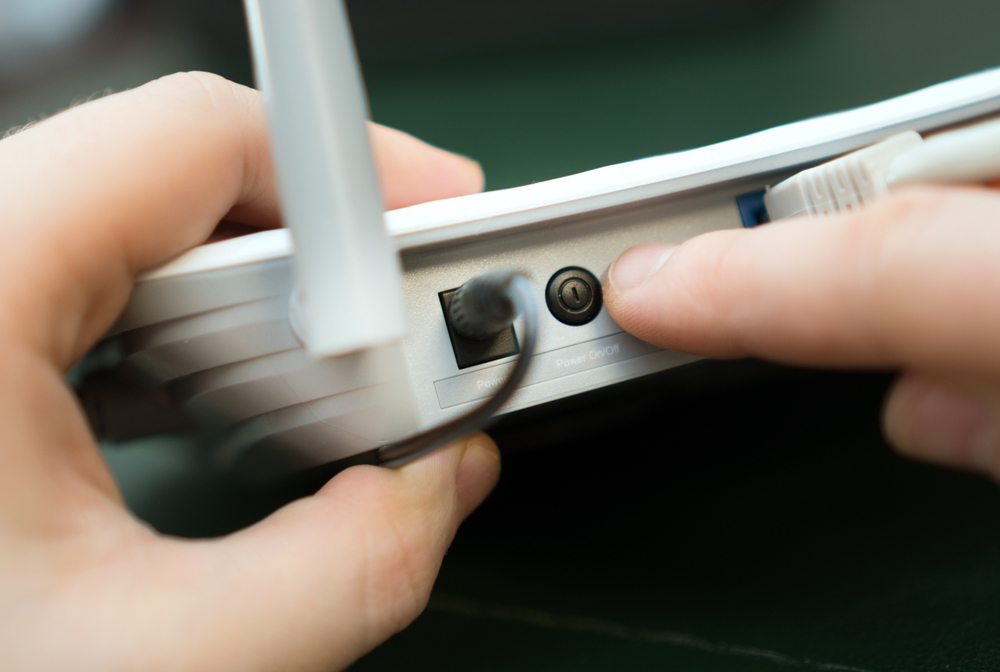
Your internet performance is most directly influenced by the availability and quality of your network devices. This generally includes the router or ethernet cable—the two central devices you need to foster a network connection. Note that if you have a wireless WiFi router interface, it is very likely that your Verizon speed check results will be considerably slower than the speeds you’d generate via a direct, wired ethernet link.

How can I speed up my Verizon internet connection?

Before you pick up your phone and dial Verizon Support, check to see if there are any DIY options you can pursue to speed up your Verizon Internet connection without any expert help. Believe it or not, there are a multitude of convenient, cost-free solutions to optimize your internet connection.

Whether that means disabling all bandwidth-heavy programs or modernizing your internet plan, there are a number of workable ways to speed up your Verizon Internet.
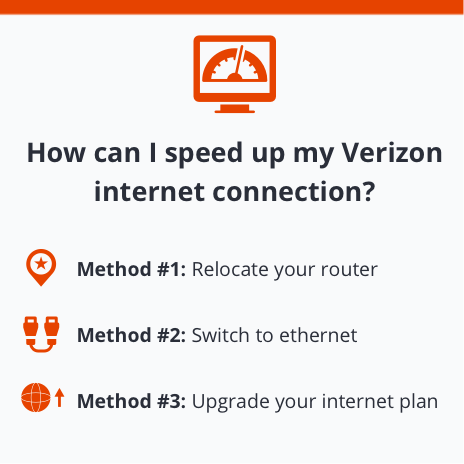
Method #1: Relocate your router

Is your router positioned in a random, secluded corner of your home? Although you may like it out of sight and out of mind, you’re likely compromising your web connection at the same time. Oftentimes, your WiFi signal is only as good as the place you put it, so be sure to relocate it to an area that is more central and open.

WiFi signals travel perpendicularly, which means when relocating your router, placing it somewhere like a shelf, bookcase, coffee table, or fireplace mantle will serve you best.

Method #2: Switch to ethernet

All across America, people are becoming increasingly reliant on WiFi. With such a high volume of people utilizing WiFi, bandwidth can become clogged and slow everyone down—especially if there are multiple devices or routers near each other.

Switching to a direct ethernet connection allows you to dodge the growing bottleneck dilemma. Establishing a direct, wired line from your router to your computer also ensures that your web connection is superior to what you’d receive from a WiFi web connection.

Method #3: Upgrade your internet plan

Even if you live in a rural, middle-of-nowhere city or town, odds are highly likely that among the few available ISPs in your area, there are multiple internet subscription plans you can choose from. If you have taken every precaution to confirm that your speed test is as precise as possible, and you’re still unhappy with the results, it might be time to update your contract or switch ISPs to land higher speeds.

Contact your provider to inquire about alternative solutions. Before you dial, make sure to do some homework so that you can come into a negotiation with a clear understanding of what you need and what price you’re expecting.


About the Authors

Your Home Wireless Network: Getting It Right the First Time

If want to send emails from your laptop in the backyard, play games on a desktop without the need for an Ethernet cord, or make sure you don’t go over your tablet’s 4G data plan limit for the month, you need a home wireless network. By taking advantage of broadband Internet access you already pay for, and with just a few additional pieces of technology, you can create a strong, secure wireless local area network (WLAN). Here are some best-practice tips:

700px-Linksys-Wireless-G-Router

Tip #1. Get the Right Hardware

You don’t need much to get your WLAN up and running. First are “access points,” which link up with your existing broadband Ethernet connection. These often take the form of wireless routers, allowing multiple devices to connect to the Internet at the same time. They have connection ports at the back for your Ethernet cable and many also double as “wired” routers, allowing you to connect computers directly using cables while broadcasting a wireless signal throughout your home. If you have trouble picking up the wireless signal in the basement or far corners of your backyard, consider adding what’s known as a “signal booster” to your access point or router. This increases the range of your network and may improve overall performance (remember: a mobile speed test is ideal for testing your home network).

Also bear in mind that any device you want to connect to your home wireless network needs a wireless adapter. Tablets and most current laptops come with these adapters built in, but older model desktops may not, meaning you’ll need to either buy an adapter or wire the computer to the router.

Tip #2. Secure Setup

If not properly configured and secured, your WLAN is free for the taking, since anyone driving by with a laptop or tablet can hijack your signal and start downloading songs or movies. To secure your network, start with your router: Open up a Web browser and enter your router’s default IP address. Most use http://192.168.1.1, but check the router’s manual to make sure. Expect to see username and password boxes pop up, but don’t worry — most use “admin” for both. Again, consult your router’s documentation.

Once you have administrator access, there are two things you need to set up. First, give your home wireless network a name — also known as an SSID — which distinguishes it from other networks in the area. If a friend comes over to visit, for example, and uses her device to search for WLANs, you want to be certain which one is yours. Next, set up a password for your network using the WPA/WPA2 standard. Pick one that isn’t easily guessed and change it periodically to avoid your network being compromised. Most devices will remember the password once you enter it the first time.

The price of wireless technology has come down in recent years, as has its complexity. With the right hardware and solid understanding of the basics, you can have a secure home wireless network up and running in less than a day.

About the Authors

Canadian Company Adds One Gigabit Service, Similar to Google Fiber

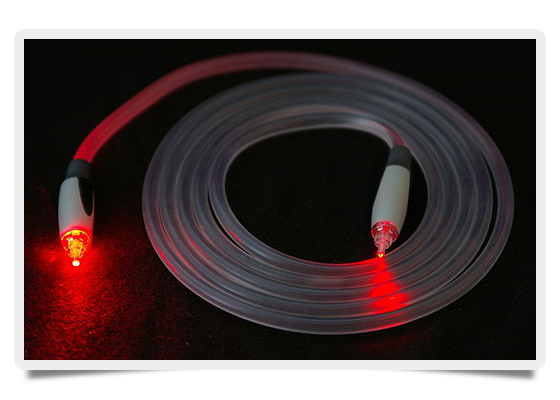
Google Fiber continues to garner a lot of publicity for its super-high-speed network capable of one gigabit per second. Still, Google’s broadband service is available only in the Kansas City metro area, with Austin, Texas, and Provo, Utah, being the only other cities currently in the planning stages.

While Google continues to plan, a Canadian company called OneGigabit is bringing a similar service to the Vancouver area in British Columbia. The company offers speeds from 1 Gbps to 10 Gbps through a combination of fiber-optic and high-capacity microwave technologies.

512px-Fiber_optic_illuminated

OneGigabit versus Google Fiber

While the Canadian company’s technology is promising, one significant difference between it and Google Fiber is that OneGigabit’s offerings are only available at multiple-tenant dwellings — namely apartments, condos, and office buildings. While the latter option looks to be a boon for smaller businesses looking for an Internet service provider solution, it doesn’t really compete with the “full” residential service offered by Google Fiber.

Multi-Units Only

Additionally, OneGigabit hopes to earn business from owners of apartment and condominium real estate properties looking to distinguish themselves from their competitors in the Vancouver area. “To be frank, it’s uneconomical to serve a single client, with the construction costs that are involved to run fiber to one particular tenant to the building,” said OneGigabit founder, Eric Kuhnke. In most cases, the company is able to install fiber where the service is being installed, but the company uses the high-capacity microwave transmitters as a backup when needed.

On a per-unit basis, the service costs anywhere from $45 to $65 (Canadian) per month for the building owner, depending on the difficulty of the installation. These fees get passed on to the tenants whether or not they subscribe to the service.

What’s Next?

If OneGigabit proves that its business model works, expect other one gigabit Internet services to appear elsewhere in the United States and Canada, which will hopefully force Google into ramping up the speed of its Google Fiber roll out. Kuhnke also expects to expand OneGigabit to other Canadian cities if the company is successful in Vancouver. And finally, while waiting for super-fast speeds in your neighborhood, remember to routinely check your bandwidth with an internet speed test provided by BandwidthPlace.com.

About the Authors