We’ve all worked behind slow computer screens waiting for a website to load, getting more frustrated with every passing second. Running a bandwidth speed test can provide insight into how fast your internet connection is and whether your internet provider is meeting your needs.
Charter Communications is one of America’s largest TV, internet, and voice providers. Charter acquired Time Warner Cable and Bright House Networks to form the Spectrum brand, which now serves more than 29 million customers throughout 41 states, with 27 million being broadband internet customers. However, no two internet connections are the same, which means your neighbor might have a lightning-fast Spectrum internet connection while your connection barely loads your browser’s homepage.
Running a Spectrum speed test can help you understand whether your internet service provider (ISP) is causing bogged down speeds or if you’re experiencing another computer issue. Throughout this guide, we’ll run you through how to conduct a Spectrum speed test, understand your speed test results, and any additional questions regarding your Spectrum web connection.
What is an internet speed test?
An internet speed test measures your internet’s broadband connection parameters, which includes your internet’s download and upload speeds in megabits per second (Mbps). When an internet speed test is run, a small file from your ISP’s server is sent to your computer. This file is then downloaded onto your computer, then reuploaded and sent back to the server. Your internet speed is the time it takes to download and upload this file.
Internet speed tests measure a number of key metrics, including:
- Upload speed
- Download speed
- Bandwidth
- Ping
- Latency
- Jitter
Depending on the internet speed test you choose, you might not get readings for each of these metrics. For most internet speed tests, you will find that upload and download speeds, along with bandwidth, are standard measurements.
How to run a Spectrum internet speed test
Running a Spectrum internet speed test is easy. Follow the steps below to get started:
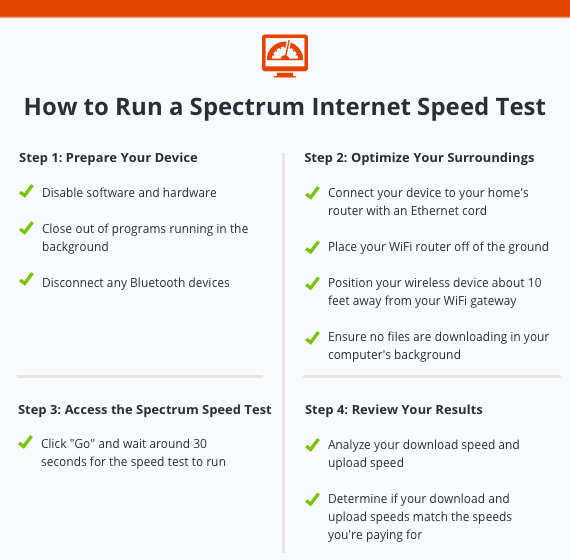
Step 1: Prepare your device
Before running your Spectrum WiFi speed test, you want to ensure your web-enabled device is fully optimized. To prepare your device, you don’t want other devices to get in your way.
Disconnect all devices that are connected to the internet, besides the device you’re using for the speed test. Multiple devices connected to your internet can lead to an inaccurate reading. This means:
- Disabling software, such as anti-virus software and multiple browser tabs, that slow down internet speed
- Disabling hardware, such as intrusion prevention systems and firewalls, that can result in a slow reading
- Disconnecting Bluetooth devices, such as wireless phones, video devices, and baby monitors
Once you’ve disconnected all other devices that are using your internet connection, you’ll be ready to move onto step two.
Step 2: Optimize your surroundings
The environment your web-enabled device is in can also alter the readings of your Spectrum internet speed test. To prepare your surroundings, consider these tips:
- Connect your web-enabled device with your home’s router with an Ethernet cord, if possible. A direct connection can help provide faster speeds compared to a wireless connection.
- Place your WiFi router off of the ground, such as on a desk or table, and away from any electronic devices that can disrupt the connection, such as cordless phones and other devices connected via WiFi.
- Position your wireless device about 10 feet away from your WiFi gateway if you can’t use an ethernet cord.
- Go through your computer’s Task Manager or Activity Monitor to ensure no files are downloading in your computer’s background.
With your surroundings fully optimized, you’ll be ready to run your Spectrum speed test.
To conduct your Spectrum speed test, start by clicking, “Go.” From there, your computer, laptop, or other web-enabled device will begin running the speed test. The speed test should take no longer than 30 seconds, and once complete, you’ll see your computer’s download speed and upload speed in Mbps.
Step 4: Review your results
Once your Spectrum speed test results come in, it’s time to begin reviewing them. Your results will show you your download speed and upload speed in Mbps. If you use Bandwidth Place’s internet speed test, you’ll also get a Ping reading in milliseconds (Ms). Other speed tests will provide a jitter reading or latency reading as well. In the next section, we’ll go over these internet speed test terms, so you can fully understand your speed test results.
The speeds from your test should resemble the speeds your Spectrum service plan states. If you notice that your internet speed doesn’t reflect the speed your Spectrum service plan promises, you can log into Spectrum’s user portal to review your subscription, plan, and contract.
Once logged in, you’ll be able to see what internet speed you’re paying for and find contact information for Spectrum’s service representatives to remediate any issues. However, it’s important to remember internet speed tests provide an approximate speed, not exact, which is why your results might not be completely accurate.
It’s also important to note that your download speed will usually be faster than your upload speed. This is because most computers are designed to download files faster than uploading files. Your computer performs a lot more downloads compared to uploads, such as loading a webpage, downloading a document for work, or playing a video game with heavy graphics, which is why ISPs prioritize download speeds to optimize service.
Spectrum internet download speeds
Spectrum offers three internet plans to choose from, with each tier having a different download speed.
- Standard Internet download speed: 60-200 Mbps
- Ultra Internet download speed: 300-400 Mbps
- Gig Internet download speed: 940 Mbps
Spectrum’s Standard Internet package should meet your online needs if you’re an everyday internet user who uses social media, sends emails, and browses the internet. You’ll need to start moving up plans depending on your activity use.
For example, the Ultra Internet package might work well for online gamers, users who stream HD videos, and small businesses. The Gig Internet package might work well for small or larger businesses that have a team of employees using the internet at any given time.
Spectrum internet upload speeds
Spectrum’s three internet plans also come with their own upload speeds. Spectrum’s internet uploads speeds for each plan go as follows:
- Standard Internet upload speed: 10 Mbps
- Ultra Internet upload speed: 20 Mbps
- Gig Internet upload speed: 35 Mbps
Similar to Spectrum’s download speeds, the internet package you choose depends on the type of online activities you perform. Larger families or small businesses may need Spectrum’s Ultra Internet or Gig Internet package, while single users or smaller families will benefit from Spectrum’s Standard Internet package.
A Spectrum speed test is a great way to determine whether your internet is performing the way it should. If you’re experiencing further issues, contact a Spectrum customer service representative.
Internet speed test terms
Running an internet speed test doesn’t require prior knowledge. All you have to do is click the start button, and your speed test will begin running. The tricky part is understanding your speed test results, as it may contain words and industry jargon you’re unfamiliar with. Below are some common speed test terms you may encounter.
Download speed
Download speed is the time it takes for your computer to retrieve data from your ISP’s server, and is measured in Mbps.
In most cases, bandwidth connections offer faster download speeds than upload speeds because a majority of online activity requires faster download speeds. Faster download speeds come in handy for a variety of online activities, such as playing video games, streaming videos, and loading webpages.
Upload speed
Upload speed is the time it takes for your computer to send back data to your ISP’s server, and is measured in Mbps. While a bulk of online activity requires you to download files, you regularly perform uploads, such as sending emails, posting a picture on social media, and video-chatting with friends and family. Activities like these require fast upload speeds.
Mbps
Megabits per second (Mbps) is a unit of measurement for internet speed. It measures the bandwidth capacity of an internet connection and determines the amount of data that can be transferred each second. The higher your Mbps reads on your speed test, the faster your internet connection is, which means you can download and upload files in a shorter amount of time.
Ping
Ping is the response time between messages sent between computers. When you send out a request, such as kicking a soccer ball into a goal on a video game, you wait for a response, such as a goalie blocking the shot. The time it takes for a response to happen is your ping rate—the lower the ping rate, the better. Ping is measured in milliseconds (ms) and is imperative for time-sensitive online programs, such as video games.
Latency
Latency is similar to ping, as it measures the time it takes in milliseconds (ms) for a response to be sent to and from your ISP’s server. While ping measures the speed at which this response takes, latency looks at the quality of the response. Higher latency means increased lag time, which means the lower the number, the better.
Bandwidth
Bandwidth is the maximum rate at which data can transfer through an internet connection within a set amount of time. While you may confuse bandwidth with internet speed, it actually refers to the volume of data that can be sent, rather than the speed at which the data is sent. Bandwidth is typically expressed in Mbps.
What should my Spectrum internet speed be?
The Federal Communications Commission sets broadband benchmark rates that ISPs should meet. The broadband benchmark rate for download speeds is 25 Mbps, while the benchmark rate for upload speed is 3 Mbps.
These benchmarks were set to ensure Americans have access to advanced broadband with timely speeds. However, over half of rural Americans lack access to 25 Mbps/3 Mbps speeds. So, if your internet speeds aren’t reaching these numbers, the FCC doesn’t count it as broadband service.
Service providers, including Spectrum, are working to bring broadband service to more people across the country so that they can enjoy fast internet speeds. Timely internet speeds are important for a variety of reasons, such as:
- Accessing HD videos
- Streaming videos online
- Downloading graphics
- Playing video games
- Retrieving files, documents, and data
- Video chatting
- Downloading music
Fast internet speeds mean users won’t experience buffering or lag when performing any of these activities on their web-enabled device.
Why is my Spectrum internet speed slow?

If you’re like most internet users, slow internet speeds might be the bane of your existence. Whether you’re trying to watch a movie on Hulu without it pausing every minute or are trying to play an online video game without your character freezing, slow internet speeds can be a major headache.
If you’re experiencing lag, buffering, or slow speeds, take a look at some problems and solutions below:
1. Outdated router
Over time, your router or modem can become outdated and decrease in quality of performance. If you’ve had your router or modem for a long time, it may be time for an upgrade. Another issue may be that your router needs to be reset. To reset your modem and WiFi router, unplug the power cords and remove any batteries, then wait at least 2 minutes to reinsert the batteries and plug the modem and router back in to ensure the reset is complete.
2. Too many devices connected to the internet
Having multiple users on an internet connection can lead to slow internet speeds. In most homes, there are multiple devices using your internet connection to function, such as phones, tablets, smart TVs, video game consoles, and voice assistants. Try disconnecting devices that don’t require the use of the internet and reconnect them when they do. In some cases, you may need to upgrade your internet plan to provide more bandwidth.
3. Computer problems
Factors such as bandwidth, latency, ping, jitter, and upload and download speeds aren’t the only reason your Spectrum internet might be slow. In some cases, it may be your computer, not your internet connection, that’s slowing down your internet speed.
Issues such as a full hard drive or a virus can result in decreased internet speed times. To determine if it’s your web-enabled device, disconnect it from the internet, and use a different device to see if performance is still sub-par.
4. Network latency is too high
Bandwidth and latency are two important factors that determine your internet speed. If your network’s latency is too high, you may be experiencing delayed internet speeds. Unfortunately, there are factors out of your control that can result in high latency, such as Spectrum throttling and congestion, that decrease performance quality.
5. You’re on a low-tier plan
Most ISPs offer a variety of internet plans to accommodate the needs of a variety of users. However, faster plans typically come with a higher price tag. To view your plan details, log in to your Spectrum account, and review your contract. Here, you’ll see what plan you’re paying for, along with the internet speeds, and will be able to determine whether or not you need to upgrade to a higher-tier plan.
Spectrum internet speed troubleshooting
Struggling with slow internet speeds is never ideal. If you’re looking to troubleshoot and speed up your Spectrum internet, take a look at these tips:
- Use a wired Ethernet connection instead of a wireless connection, which tends to be faster
- Close out of any downloads that are in progress
- Close out of any programs, such as video games, streaming services, and video calls
- Reset your WiFi router and/or modem
- Place your WiFi router upright and off of the ground
- Update firmware, anti-virus software, and other computer software
- Disconnect any devices you aren’t currently using that are connected to the internet
There are a variety of factors that affect your internet speed. Trying these troubleshooting tips can be the solution you’re looking for to speed up your internet.