How to Reduce Lagging Internet Speed

In today’s world of fast Internet and a need for more bandwidth, many are finding a common enemy in lagging Internet speed. More devices are connected to the home network, and each device draws bandwidth. While the Internet speed to your home does not get reduced, it may seem like it — especially if family members are watching streaming video or downloading their favorite music albums.

wireless-router-lagging-internet-speed

Centralized Location

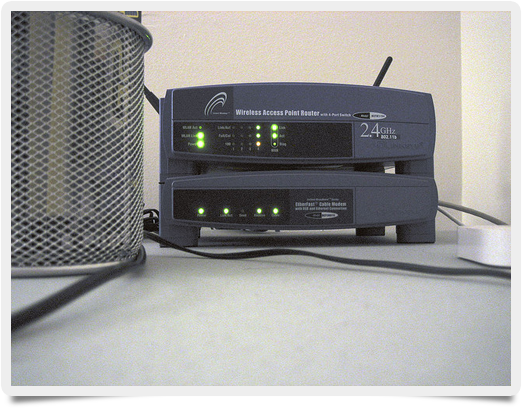
One of the biggest issues today for families is trying to get the best signal coverage within their home. In many cases, the real issue is the location of the router. Routers may not look like it, but they are like a radar dish sending signals in various directions. One might think that the direction of the signal would be dome-like, and that it would go through the home this fashion. While it is dome-like, the signal actually shoots down and out, not upwards. So, it is best to place the router upstairs if possible.

Location is everything for the router. The more restricted the router is by placement, the more restricted the signal is. Placing the router into a TV cabinet, or crammed between the TV and wall, is restrictive. The router should be in an open space, and according to CNET, as high as possible.

Signal Testing

Try testing the signal strength in various rooms to help find the best area in the house to meet all your family’s needs. Move the router to a centralized location. Take your wireless devices into different rooms and connect to BandwidthPlace.com to test your Internet speed. If you are not satisfied, then move the router to a higher place and repeat the process. Remember that a direct connection to the router will always give a much stronger signal than wireless. Wireless starts losing some of the signal as soon as it is transmitted.

Just by moving the router to a different, preferred location in the house, you should see a significant reduction in lagging Internet speed.

Photo credit: Flickr/trekkyandy

About the Authors

Naming Your WiFi: Tips for Secure Silliness

Naming your WiFi network is important. Too common and guests won’t be able to figure out which network is yours; too specific and you might get some strange questions. The best WiFi names are those you can remember easily but don’t give away personal information or hint at passwords. Humor is usually a good idea in moderation — so, how do you pick a silly and secure WiFi name?

naming-your-wifi

Naming Conventions

There are no rules that govern the naming of your WiFi. Most networks default to the name of the wireless router company, so when you first set up a network it will likely be named “Linksys” or “DLink” or something similar. In addition, most networks default to “open,” meaning they can be accessed by anyone in range using a wireless-enabled device.

To change the name of your WiFi and security settings:

  • Go to the admin panel of your router. Every router company uses a slightly different home IP address, which will be listed as part of the router’s documentation. Point your Web browser to this address and you’ll find a login page. Again, look to the router’s instruction manual, but most companies use “admin” as the login name and don’t require a password. Others don’t require a user name, but default to “admin” as the password.
  • Once you’ve accessed the router’s system panel, navigate to the security tab and you’ll find options to change both your network’s name and security settings.
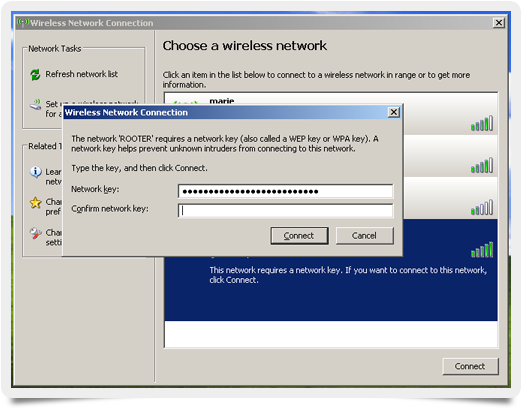
  • If possible, enable WPA2 security, which allows you to create a password and offers the highest level of protection when you’re connected. WPA is a less secure option, but enable it if you can’t get WPA2 protection. If you have no other choice, use WEP.
  • Make sure your password is something you’ll remember but isn’t “admin” or the name of the router company.

Next, it’s time to select a new WiFi name.

It’s Catchy, Right?

There are a few best practices when it comes to naming your WiFi network:

  • Don’t use any personal information such as your name, date of birth, or street address. While using personal data helps you and your family pick out the right wireless network, it also gives out dangerous information to whoever else might be looking.
  • Don’t pick a name that’s too over the top, embarrassing, or offensive. Slightly scandalous WiFi names and dirty jokes have become commonplace for many users, but try explaining why you picked an off-color name to children or relatives — better to stick with something funny and clean. For example, “Too Fly for a WiFi” is clever without being over the top and is also easy to remember, and many users still choose “FBI Surveillance Van” as a way to put off would-be hackers.
  • The best sources of funny WiFi names come from hobbies you enjoy or sports you play; in a household of golfers, for example, a good WiFi name might be “The 19th Hole.” A football-loving family might pick “4th and 10 Mbps,” while dog owners could create a “WooFi” network.

Using your imagination is key to choosing a funny WiFi name — one you can easily remember but doesn’t give away password or personal information.

About the Authors

Get Your Best Internet Speed Performance With These Simple Tips

When it comes to choosing the best location for your wireless router, it can be tempting to place it near where your modem already is; however, it is important to note that location plays a significant role in the Internet speed performance of your device. Location is crucial when it comes to obtaining peak Internet speed performance. While wireless signals are greatly affected by walls, other wireless devices, and many other variables, picking a solid location for your router is simple when you consider a few simple common-sense measures.

internet-speed-performance

How to Determine Location for Your Router

When placing a router, the first major consideration is that you will want to position the router in a central location nearest to where your devices will be connecting. Since distance can cause bandwidth amounts to degrade between 50 percent and 90 percent, this is one of the most effective ways to ensure solid Internet speed performance on your network. The next major rule to keep in mind is that you will want to avoid physical obstructions from getting in the way of your router. Aside from brick or plaster walls, furniture, mirrors, and other reflective surfaces also degrade bandwidth significantly.

As mentioned earlier, interference with other wireless devices can also significantly degrade the Internet speed performance of even the best devices. Typically, you will want to avoid microwave ovens, cordless telephones, baby monitors, and home automation equipment. Additionally, you should avoid electric fans, other motors, and fluorescent lighting.

Measuring Your Internet Speed Performance

As you are positioning your router, you should run Internet speed tests to make sure that you are getting the best speeds possible. By using a responsive Internet speed test, you can run tests on mobile and desktop devices in your browser to ensure that you are getting uniform results regardless of the device. Additionally, since you don’t need to worry about application downloads, you can immediately start running tests as needed either during the router installation or down the road as things change.

Photo credit: Flickr/fuzzcat

About the Authors

Naming Your WiFi and Other Simple Ways to Stop Freeloading Neighbors

Is your neighbor stealing your WiFi? It’s possible, especially if you notice low speeds or high volumes of data transfer. So how do you find out if you’re the hot spot for freeloaders, and what can you do about it? Is password protecting or naming your WiFi something new enough to keep it secure?

naming-your-wifi

Detecting Freeloaders

Before you can stop WiFi moochers, you need to find out who’s using your connection. Start by resetting the router, checking your computer for malware, and then boosting the WiFi signal. If none of these methods improve your connection, you may have an unwanted passenger. First step: Disconnect all wireless-enabled devices in your home. This includes desktops, laptops, tablets, smartphones, and gaming consoles. Next, check to see if the “wireless” light on your router is still blinking. If so, you have a guest.

To find out more, you need to access your router’s admin functions, and that means you need its IP address:

  • On a Windows computer, go to the Start menu, and in the “search programs and files” box, type in cmd. This will bring up a small black screen with a command prompt. Here, type ipconfig and then look for “default gateway.” This is the IP address of your router.
  • On a Mac, open Network Preferences and look for the IP address next to the word “Router.” Type this IP address into your Web browser and you’ll get a login screen.

Most routers use “admin” as the login name or password and leave the other field blank. Check with your ISP if they provided the router or read the router’s instruction manual if you’re not sure.

Every router is different, but once you’ve gained admin access, what you’re looking for is a list of connected devices. This may be under “Attached Devices,” “My Network,” or “Device List.” Here, you’ll see a list of connected IP addresses, media access control (MAC) addresses, and a list of device names if they’ve been made public. If all wireless devices in your home are disconnected, any that show up on this list are stealing your WiFi.

Send Them Packing

There are two problems with WiFi stealers — whether they’re the next-door neighbor or a drive-by hacker:

  1. They can eat up your bandwidth and make your connection slower.
  2. They may be accessing illegal sites or conducting illegal transactions online. If law enforcement comes looking, your house will be the first stop.

So how do you get rid of these pests?

  • First, trying naming your WiFi something different or enabling “Hidden SSID,” which prevents your address from being seen by other wireless devices. These are just stopgaps, however, since there are free tools available to uncover hidden networks and a change of name won’t fool freeloaders for long. But changing your WiFi name and hiding the address should give you time to make a few other improvements.
  • You can turn on IP and MAC filtering, which let you block specific addresses from connecting, but getting a new IP address isn’t difficult and determined moochers can “spoof” their MAC address for access.
  • Your best bet is to change your security settings and enable WPA or WPA2 encryption if it’s available. Older routers use what’s known as WEP security, which can be hacked in less than half an hour. Choose a strong password for your WPA2 network that includes random letters, numbers, and symbols.
  • If you’re more tech-savvy and want to play a practical joke on your wireless-stealing neighbors, you can learn how to create a dummy network that redirects all traffic to a site of your choosing or turns all images upside down.

WiFi theft is rising, in large part due to an increased number of unsecured home wireless networks. If you’re worried the neighbors are stealing your WiFi, do some research on your connection and, if necessary, put a stop to the wireless gravy train.

Photo credit: Flickr/riddle_

About the Authors

Internet Speed Test: 3G, 4G, LTE, and Wifi — Who Wins?

If you’re using a tablet or smartphone, chances are you’ve got more than one way to connect to the Web; the latest devices offer not only 4G connectivity but 3G compatibility and WiFi. But which connection type is fastest? If you run an Internet speed test, who comes out on top?

internet-speed-test

3G Versus 4G

First generation (1G) cellular devices were analog phones. Second generation (2G) introduced digital along with limited Internet connectivity. In the third generation (3G) and fourth generation (4G), however, things got interesting. Both 3G- and 4G-enabled devices offer broadband access to the Internet but have very different speed standards. To be qualified as 3G, a network’s peak transfer rates only need to reach 200 kilobits per second (Kbps). If this sounds slow, it is — the standard was established in 2003. Many 3G networks now offer speeds ten or twelve times that fast. 4G networks, meanwhile, must offer transfer rates 100 megabits per second (Mbps) when users are “mobile,” for example, in cars or buses, and 1 gigabit per second (Gbps) when users are stationary. It’s important to note that these are “peak” values, meaning distance from the connection’s source, number of users connected, and even weather can all impact transfer rates. In addition, there are multiple 4G networks in operation.

Understanding LTE

LTE, which stands for long-term evolution, is one of three major 4G networks used in the United States. HSPA+ and WiMAX are the other two contenders, and each claims to be the most reliable solution for 4G users. By the numbers, LTE comes in with the highest theoretical top-end, offering 300 Mbps download and 75 Mbps upload speeds. WiMAX is next, with 75 Mbps download and 30 Mbps upload, followed by HSPA+ at 42 and 23, respectively. On paper, this means a slam-dunk for LTE, but some experts argue it’s not so simple. Again, these are peak values, meaning transfer rates no normal user will see. Instead, it’s more likely that all three networks will provide speeds in the mid-to-high single-digit range (5–9 Mbps) on average. While it’s too early to call an Internet speed test winner among 4G networks, LTE is by far the most popular.

What About WiFi?

In addition to 3G and 4G cellular networks, most mobile devices can also connect to wireless (WiFi) networks. The speed of these connections depends on the signal provided and the type of network card installed in the device. Maximum wireless speeds are governed by the Institute of Electrical and Electronics Engineers (IEEE) standard 802.11. Cards using the 802.11b standard can reach 11 Mbps, those using 802.11a or 802.11g can reach 54 Mbps, and those running on 802.11n have a theoretical maximum of 600 Mbps. A small number of devices also use the 802.11ac standard, which offers a blazing 1,300 Mbps at its upper end. Just like 3G and 4G networks, however, several factors impact overall speed. Distance to the wireless source, interference from other wireless networks, and number of users sharing the same bandwidth may all conspire to limit speed. Realistically, users with an 802.11a or 802.11g connection can expect 20 Mbps download, while 802.11n should get 40 to 50 Mbps.

So who wins the Internet speed test? At small distances, with an 802.11a or better network card, WiFi comes out ahead. Beyond the reach of wireless, however, 4G LTE offers the best connection and the most coverage, but its scope is still fairly limited. Think of 3G like the tortoise in this race; slow but steady, and still reliable — and still providing service for the bulk of mobile users.

About the Authors

Satellite Internet or 4G: What Offers the Fastest Service?

Deciding between satellite Internet service and a 4G wireless connection depends on a variety of factors. While it can sometimes offer speeds that rival those of cable or 4G services, satellite broadband comes with other limitations. In most cases, your bandwidth will be throttled during peak usage times, which are normally during the day.

Bigpond_internet_Satellite

Let’s take a look at whether Internet service delivered via satellite makes sense for you.

Satellite Service May Be the Only Option in Some Rural Regions

In certain rural areas, satellite service may be your only option for broadband-level Internet. While 4G coverage is expanding, especially on the Verizon Wireless network, you may find 4G service to be spotty in your locale. Satellite Internet providers know they essentially have a captive audience when it comes to providing broadband access in rural regions.

The fastest satellite providers are able to reach speeds of close to 15 Mbps, although expect something in the range of 5 to 8 Mbps to be a typical speed. A standard 4G network speed falls somewhere between 15 and 20 Mbps, depending on the carrier and the current network traffic level. So, 4G service is generally faster than satellite, provided that coverage is available in your area.

Watch Out for Limited Bandwidth!

The bandwidth limitations of a satellite Internet service can be very frustrating. Most providers have a daytime bandwidth limit in the range of 10 to 20 GB of data per month, which definitely puts a hamper on the amount of video streaming you can do. Nighttime bandwidth limits also exist but are generally larger than their daytime equivalents.

If 4G service isn’t available in your area and you’d like something faster than dial-up speed, satellite Internet may be your only option. However, a combination of trees blocking your satellite view and a lack of 4G coverage in your area may limit your Internet options until 4G service becomes more ubiquitous in rural areas. In that situation, be sure to research the coverage areas of the different wireless carriers before choosing an Internet service provider.

Ultimately, 4G generally offers faster speeds than satellite Internet but may not be available everywhere, and the bandwidth limitations of the latter definitely put a crimp in your Internet experience. Carefully research all of the options available in your region before making your decision.

Photo credit: Wikimedia Commons

About the Authors

Varying Internet Speeds: The Great Device Divide

Tablets, laptops, and smartphones are handy gadgets — so handy, in fact, that sales of mobile technology are starting to outstrip that of desktops. But despite their ease of use, portability, and multi-functionality, you may notice varying Internet speeds across mobile devices, with some delivering high-end performance while others lag behind. Here are five reasons your speed doesn’t stay the same across devices:

varying-internet-speeds

1. The Wired/Wireless Divide

Wired is faster. Copper-based Ethernet and phone cables (or glass-based fiber optics) offer higher data transfer rates than wireless networks. Download rates of 100 megabits per second (Mbps) are offered by major telecom providers for most wired Internet plans, with some “high-speed” offerings pushing the 500 Mbps or even 1 Gb (gigabit) mark. In large part, this increased speed is due to a solid connection. On wireless connections, interference in a wireless signal, distance from the wireless source, and number of users on the network all impact overall speed, meaning you’ll rarely see the theoretical “maximum.” In addition, wireless networks may “drop” connections, leaving you temporarily without access.

2. Wireless Network Card Type

If you’re using a wireless-enabled device such as a laptop or smartphone, the type of networking card installed makes a big difference when it comes to speed. Older cards use what’s known as the 802.11b wireless networking standard, which has a maximum transfer rate of 11 Mbps. Cards using 802.11g or 802.11a can theoretically achieve 54 Mbps, while those using 802.11n can potentially reach 500 Mbps. To improve your chances of a speedy wireless connection, work as close to the wireless source as possible and use a network with the fewest number of other connected devices.

3. 3G/4G

You may also choose to access the Internet using your smartphone or tablet provider’s cellular data network. There are two main types of cellular data networks: 3G and 4G. The “G” simply stands for “generation,” meaning 3G is third-generation technology and 4G is fourth-generation. The first generation (1G) was analog cell phones, followed by 2G digital phones. Both 3G and 4G offer broadband Internet access for users, but at very different speeds. To be considered 3G, a network must offer a peak data transfer rate of at least 200 kilobits per second, but many newer networks offer ten times that speed. 4G, meanwhile, must offer up to 1 Gbps when the device is stationary and 100 Mbps when in motion.

4. Differing Networks

Even if you’re on a 4G network, you may experience varying Internet speeds. This is because not all networks are created equal — in the United States alone, there are three major 4G network deployments: LTE (long term evolution), WiMAX (worldwide interoperability for microwave access), and HSPA+ (evolved high-speed packet access). LTE is the most popular and typically offers the best overall speed. It’s also worth noting that a 4G device won’t always work in 4G mode. If you travel outside major urban areas, your tablet or smartphone will seek out the best available network, which is often 3G.

5. Your Operating System and Software

If you’re on a solid network with a powerful device but still getting poor performance, your operating system (OS) may be to blame. Both Android and iOS users have complained over the years that certain OS iterations slow down Internet speeds or impact downloads. On wired PCs or laptops, this kind of slowdown is often related to virus protection software or firewalls, which scan incoming packets of data. Some real-time protection software scans deeply enough that overall speed is affected.

Looking for the best speed on your device? Make sure you know your connection and understand its maximum potential.

Photo credit: Wikimedia Commons

About the Authors

WiFi Security Levels: What’s Best for Your Network?

If you have a home wireless network, it’s worth determining your WiFi security levels, as well as what exactly they mean for your connection. With just a few simple steps, you can make sure any WiFi network is operating with maximum protection.

wifi-security-levels copy

Security Simplified

There are three “types” of WiFi security: wired equivalent privacy (WEP), WiFi protected access (WPA), and WiFi protected access version 2 (WPA2). According to a white paper from the IT security magazine hackin9.org, WEP came first, debuting in 1999 as part of the IEEE 802.11 wireless standard. The goal was to provide a level of protection equal to a wired connection, but since it wasn’t the brainchild of security or cryptography experts, WEP was quickly hacked. WPA developed as an interim solution while a new standard — IEEE 802.11i — was being finalized. In 2004, IEEE 802.11i went public along with WPA2, which featured several security enhancements. The most important was the advanced encryption standard (AES), approved by the US government for encrypting top-secret information.

Worth Checking

Current-generation wireless modems and routers usually support multiple security levels but may not always default to WPA2. To find out how your network is protected, point a web browser to your router’s home IP address and access the control panel. Not sure what IP address it uses? You can either look up a list of common IP addresses for router brands online or find your Command Prompt in Windows. Then enter “ipconfig”. This will return an IP address called “default gateway,” which is the address of your router. Putting this address into a browser brings up the router’s control panel, where you’ll be required to enter a login name and password. Refer to your router’s manual for this information.

Once you’ve accessed the control panel, find the tab or drop-down menu labeled “security.” There, you’ll be able to see what kind of protection is in place and adjust any settings necessary. If supported, you can increase the security level from WEP or WPA to WPA2, along with creating a unique passphrase users must enter before they’re granted access. In addition, you can directly control which other devices are connected to your network, ban certain devices based on their IP, or even make your network invisible to other computers in the area. When selecting a WPA2 passphrase, make sure to use something you’ll remember but hackers won’t guess — so avoid things like street addresses or repeating number patterns.

The best security level for your WiFi network is WPA2. If you’re not sure how a network is protected, check the router’s control panel and increase WiFi security levels as necessary. Insecure networks are tempting targets: make sure you’re in control of who gets access, and when.

Photo credit: Flickr/Xurble

About the Authors

Is It Time for a New Internet Router?

If your Internet seems to be running slower than it used to, it may be because you need a new Internet router. There are several other possibilities that could be the issue, and you don’t want to start off by purchasing a new router that may not solve your problem. Here are a few things to look for to help you determine whether you need a new router:

new-internet-router

Test the Bandwidth Speed

The first thing you should do is test your bandwidth speed with multiple configurations. Run the test with only one device connected to the router. You may find that one device in particular is drawing a lot of the bandwidth by itself. Also, run the test with the device wired, as well as wireless. Wireless always produces less bandwidth as the signal passes through the air to get to the device. If the router is producing low bandwidth under a wired configuration, then it is possible that the router is getting a little run down.

Check Other Devices

There are several things that can cause a drop in bandwidth. If one of the kids in the other room was playing on the computer and left 10 browser windows open when she left to go outside, the open windows are still using bandwidth even though no one is at the computer. Depending how high-tech your home is, you may have gaming consoles, phones, tablets, computers, DVD players, or even refrigerators connected to your router. Any or all of these items could be sucking the bandwidth from the other devices.

Time to Upgrade?

Technically, there may not be anything wrong with your router except it is old and tired. The router is a tool, and as technology advances, the tool must be upgraded to keep up. Look at your router — if it’s a 802.11b or g, then it is time to upgrade. Your router should be 802.11n compliant. If you have several newer devices in your home, you may want to consider a dual-band wireless router.

As PCMag points out, not everyone needs a dual-band router, but you may soon. The dual-band sends out two signals, one at 2.4 GHz (same as your garage door opener) and another at 5 GHz. Newer devices are equipped to handle the higher frequency 5 GHz. The nice thing about dual-bands is that they connect appropriate devices to the 5 GHz signal and allow you to connect your older devices to the 2.4 GHz signal at the same time.

Whether your router needs to be replaced now or not, you can bet the time is not too far away. Until you feel the time is right to invest in a new Internet router, make sure to update the software on your current model. Use that old router as long as you can, because technology is changing and so must the tools to get that bandwidth to your home.

Photo credit: Flickr/butkaj.info

About the Authors

WiFi vs Wired Connection: Strengths and Weaknesses of Both

When setting up a home network, it helps to know the issues concerning a WiFi vs Wired connection. What are the strengths and weaknesses of both? Is it worth the extra cost and effort to set up a wired connection for every computer in the house?

Yagi-Uda_antenna_for_Wi-Fi_on_Router

Mobile Devices Really Need a WiFi Connection

Ease of connectivity is the major advantage WiFi connections hold over their wired brethren. In this age of mobile devices, connecting to a wireless router is effectively the only option for Internet access for a smartphone and tablet computer. And the wireless trend is also reaching some notebook computers, like the MacBook Air, which doesn’t even a have an Ethernet port for connecting to a wired network.

Advancements in wireless technology also provide better speeds that now compete with what Ethernet offers over a wired connection. The newer 802.11ac standard theoretically reaches speeds up to 1,000 Mbps, matching many Ethernet ports.

Wired Offers Some Advantages Over a Wireless Connection

Still, despite the relative convenience of a WiFi network, connecting to a wired network using a fast Ethernet port provides the most secure signal, with no radio interference or the potential of someone hacking a wireless router. Radio interference, while primarily a minor problem, does impact the speed of a connection and limits its range somewhat, especially in a larger house.

Of course, there is the extra cost involved in the cabling, ports, and effort needed to properly wire up an Ethernet network in a house. So that is an issue that must be considered when deciding between Ethernet and WiFi.

The Decision Between a WiFi vs Wired Connection

Ultimately, it depends on whether the speed and security of an Ethernet network is worth the extra setup cost as well as the inability for any mobile devices to connect. The growing number of smartphones and tablet computers in the home mean a WiFi network makes the most sense for the majority of consumers.

Photo credit: Wikimedia Commons

About the Authors